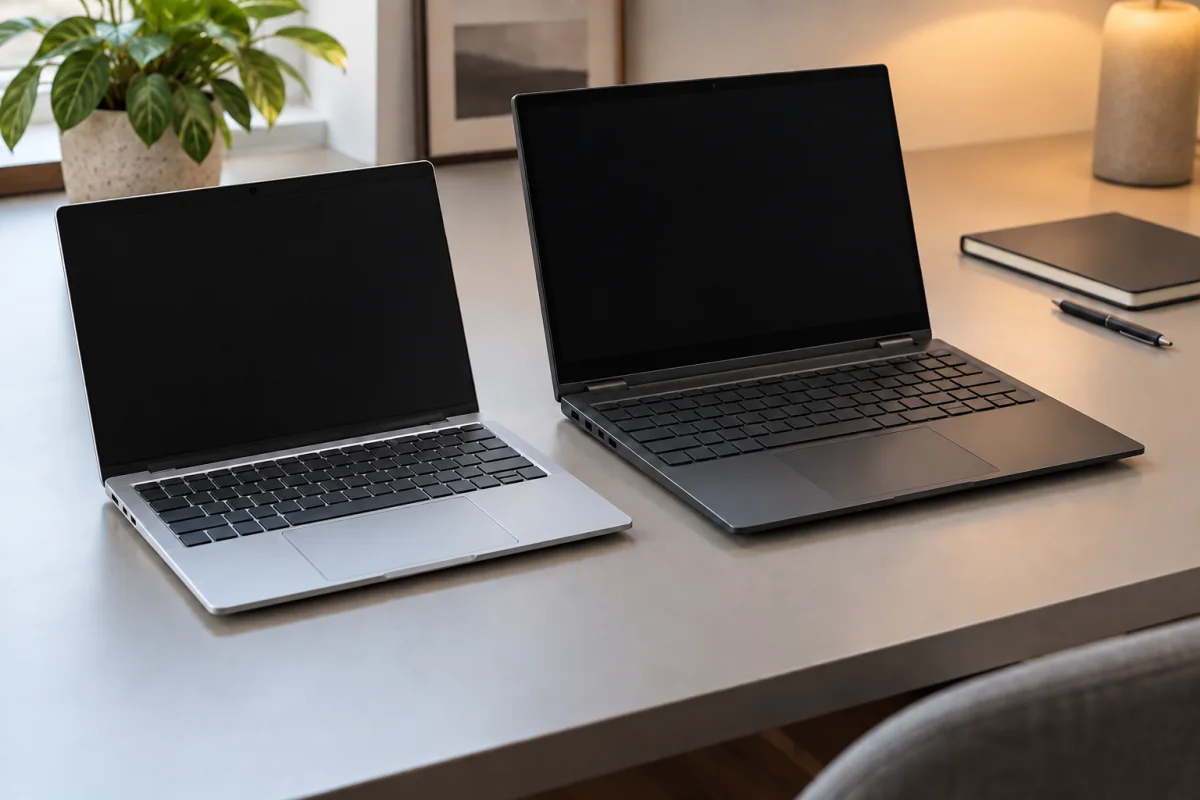
Choosing a laptop comes down to seven specs: processor tier, RAM, SSD size and type, screen, battery in watt-hours, ports, and weight. Everything else on the spec sheet is a nice-to-have. This guide explains how to read each of the seven, gives targets for office work, students, creators and light gaming, and lists the tricks manufacturers use to make a weak laptop look strong on paper. Prices are ranges at the time of writing.
Key takeaways
- Decide what you do first. A laptop for email, browsing and documents needs very different specs from one for video editing, and paying for the wrong ones is the most common mistake.
- 16 GB of RAM is the sensible floor for a laptop you plan to keep for four or more years. 8 GB still works for light use but leaves no headroom.
- A 512 GB SSD is the comfortable minimum. 256 GB fills up within a year for most people.
- Screen brightness and colour coverage matter more than resolution. A 300-nit, 100 percent sRGB panel beats a dim 4K one for daily use.
- Battery capacity in watt-hours predicts runtime better than the “up to 18 hours” claim on the box.
Start from what you do, not the price
Write down the three things you will do most, then sort yourself into one of four groups:
- Office and browsing. Email, documents, video calls, streaming. Any current mainstream processor is fine; spend on screen, keyboard and battery.
- Student. The same as office, plus a battery that lasts a day of lectures. Weight and watt-hours matter most.
- Creator. Photo and video editing, 3D, large code builds. Cores, RAM, a colour-accurate screen and a fast SSD move to the top.
- Light gaming. Esports titles and older games at 1080p. A dedicated graphics chip and a high-refresh screen matter; battery life suffers.
The 7 specs that matter
1. Processor tier: how to read Intel, AMD and Apple names
A few rules decode most processor names.
- Intel. Current chips are called Core Ultra 5, 7 or 9, with a generation label such as Series 2. Older ones are Core i3, i5, i7 or i9 followed by a generation number (a 13th-generation i5 is written 13xx). The letter at the end is the power class: U for thin and light, H for high performance, V for the efficient Lunar Lake chips. A Core Ultra 5 H often beats a Core Ultra 7 U in sustained work, so read the tier and the letter together.
- AMD. Ryzen 5, 7 and 9 tiers, with a four-digit model number where the first digit is the year and a suffix (U, HS, HX) for power class. Ryzen AI 300 series chips use a simpler three-digit name. AMD’s naming is explained on its laptop processor page.
- Apple. M-series chips (M3, M4) come in base, Pro and Max versions. The base chip handles office and student work; Pro adds cores and memory bandwidth for creators.
For office and student use, a current Core Ultra 5, Ryzen 5 or base M-series chip is plenty. Creators should look at H-series Intel, HS or HX Ryzen, or M-series Pro. Do not pay for a Core Ultra 9 in a thin chassis; it will throttle to the speed of a cooler Ultra 7.
2. RAM
RAM holds whatever you have open; when it runs out, the laptop swaps to the SSD and stutters. Targets: 8 GB for light browsing only, 16 GB for almost everyone, 32 GB for video editing, virtual machines or very large spreadsheets.
Two details the listing rarely shows. First, whether the RAM is soldered: most thin laptops and every Mac have memory fixed to the board, so the amount you buy is the amount you keep. Second, whether it runs in dual channel: two 8 GB sticks are noticeably faster than one 16 GB stick for graphics and multitasking.
3. SSD size and type
Every laptop worth buying uses an SSD. Size: 256 GB is tight once Windows, Office and a few games are installed; 512 GB is the comfortable minimum; 1 TB for creators. Type: look for NVMe (PCIe 3.0 or 4.0); the difference between them shows only when copying tens of gigabytes. Avoid any laptop advertising “eMMC” storage, which is closer to a memory card than an SSD.
On most Windows laptops the SSD is replaceable, so buying 512 GB and upgrading later works. On Macs and some ultra-thin models it is not, so buy the size you will need in year three. For large photo and video libraries, an external drive or one of the NAS drives for home office use we cover is cheaper than internal storage.
4. Screen: resolution, brightness, colour and refresh rate
You look at the screen all day, so it deserves more attention than the processor.
- Resolution. 1920 x 1080 (Full HD) or 1920 x 1200 is sharp enough at 13 to 15 inches. 2.5K panels are a pleasant step up for text; 4K costs battery for little gain.
- Brightness. Measured in nits. 250 is the bare minimum, 300 to 400 is comfortable near a window, 500 or more for outdoor use. Budget panels at 220 nits look washed out in daylight.
- Colour coverage. Aim for 100 percent sRGB; DCI-P3 matters for photo and video work. Many sub-600-dollar laptops ship 45 percent NTSC panels (roughly 62 percent sRGB) that make everything look grey.
- Refresh rate. 60 Hz is fine for office work; 120 Hz makes scrolling smoother and matters for gaming.
- Panel type. IPS is the reliable default. OLED gives perfect blacks and rich colour but costs battery on bright white pages.
The VESA DisplayHDR program is one of the few screen certifications with published minimums; a DisplayHDR 500 badge guarantees at least 500 nits peak.
5. Battery in watt-hours
Ignore the “up to 20 hours” figure. Look for the capacity in watt-hours (Wh) in the detailed specs. Combined with the processor class, it predicts real runtime. A rough guide for a 14-inch laptop doing office work at moderate brightness:
| Battery | Efficient chip (U, V, M-series) | Performance chip (H, HX) |
|---|---|---|
| 40 to 50 Wh | 5 to 8 hours | 3 to 5 hours |
| 55 to 65 Wh | 8 to 12 hours | 5 to 7 hours |
| 70 to 100 Wh | 12 hours or more | 6 to 9 hours |
Apple’s M-series laptops sit at the top of these ranges. For a full day away from a socket, 55 Wh with an efficient chip is the floor. Whatever you buy, the settings in our guide to extending laptop battery life add an hour or two.
6. Ports
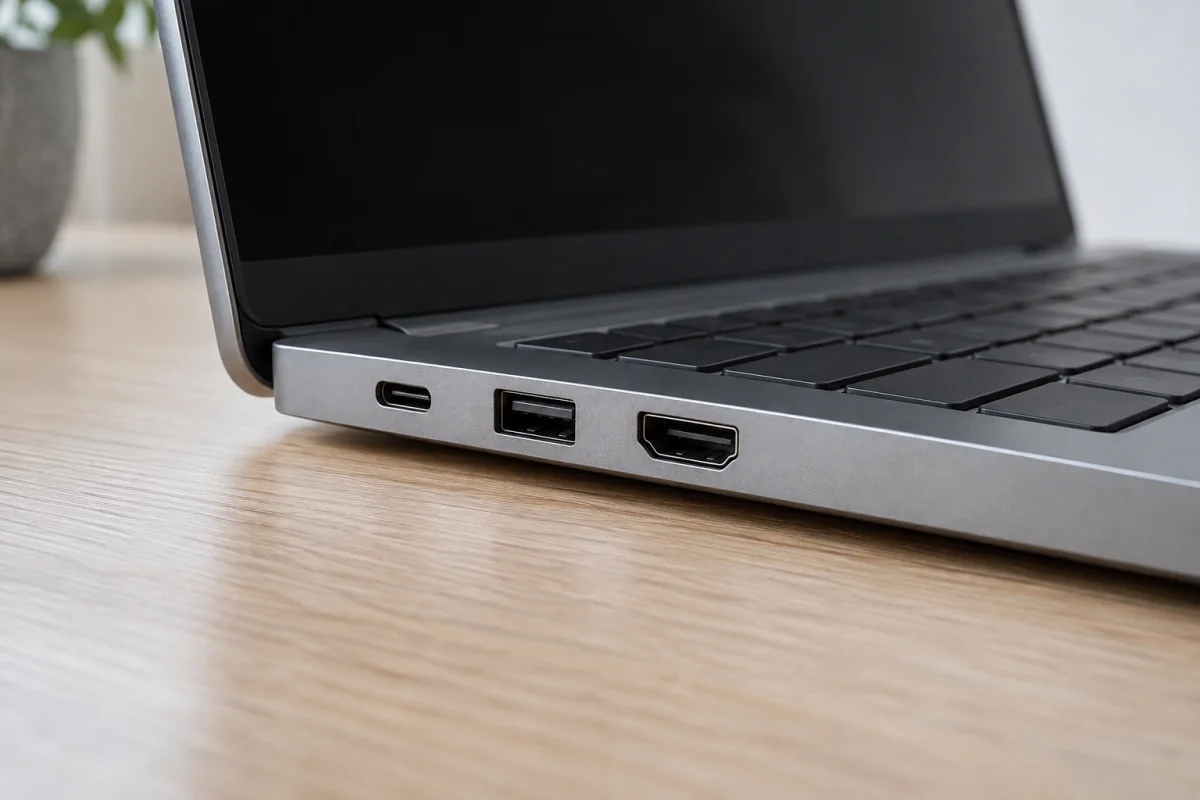
Count what you plug in. Most people need two USB-C ports (one for charging), one USB-A for older accessories, and HDMI or a USB-C port with DisplayPort for an external screen. Check that at least one USB-C port supports charging (USB Power Delivery) and video; many budget laptops have a USB-C port that does data only. Thunderbolt 4 or USB4 is worth having if you will dock the laptop to monitors for working from home, because one cable then carries power, display and peripherals. What each USB-C logo promises is on the USB-IF Power Delivery page.
7. Weight
Under 1.3 kg (about 2.9 lb) is a laptop you forget is in the bag. 1.3 to 1.8 kg is fine for a commute. Over 2 kg is a desktop you can move. Add the charger too; gaming laptop bricks can weigh 700 g.
Spec targets by use case
| Spec | Office | Student | Creator | Light gaming |
|---|---|---|---|---|
| Processor | Core Ultra 5 / Ryzen 5 / M-series | Same, efficient class (U, V, M) | Core Ultra 7 H / Ryzen 7 HS / M Pro | Core Ultra 5 H / Ryzen 5 HS + dedicated GPU |
| RAM | 16 GB | 16 GB | 32 GB | 16 GB |
| SSD | 512 GB | 512 GB | 1 TB NVMe | 1 TB NVMe |
| Screen | FHD, 300 nits, 100% sRGB | FHD, 300 nits, under 14.5 in | 2.5K+, 400 nits, DCI-P3 | FHD/2.5K, 120 Hz or more |
| Battery | 50 Wh+ | 55 Wh+ | 70 Wh+ | Any (expect 3 to 5 hours) |
| Weight | Under 1.6 kg | Under 1.4 kg | Under 2 kg | Under 2.5 kg |
If you run a small business and need daily travel and docking, follow the office column with extra weight on ports and warranty; our guide to laptops for small business goes into that. If most of your work is reading, note-taking and video, see our guide to tablets for students before deciding.
Price ranges at the time of writing by tier
- Under 500 US dollars. Expect 8 GB RAM, 256 GB storage and a dim screen. Workable for browsing; 16 GB and a 300-nit panel occasionally appear in this bracket on sale.
- 500 to 900 dollars. The sweet spot for office and student buyers. Core Ultra 5 or Ryzen 5, 16 GB, 512 GB and a decent Full HD screen are all achievable. Apple’s base MacBook Air sits at the top of this range when discounted.
- 900 to 1,500 dollars. Better screens (2.5K, OLED, 400 nits), aluminium builds, 70 Wh batteries, Thunderbolt. Entry gaming laptops with a mid-range GPU live here too.
- 1,500 dollars and up. Creator machines with 32 GB, 1 TB, colour-accurate panels and H-class chips, plus serious gaming laptops.
Things marketing hides
- Soldered RAM sold as “upgradeable”. The SSD may be replaceable while the memory is not. Search the model name plus “RAM soldered” before buying 8 GB.
- 45 percent NTSC screens. If colour coverage is not stated, assume it is poor.
- Single-channel memory. “16 GB” can mean one stick. Look for “2×8 GB” or “dual channel”.
- Processor tier without power class. A Core Ultra 7 U in a 500-dollar laptop is not the Ultra 7 H in a 1,200-dollar one.
- Battery hours measured playing local video. Halve the number for real use.
Who should wait or buy refurbished
If yours still works and you only browse and write, wait for the seasonal sales. Manufacturer-refurbished machines with a full warranty are typically 15 to 30 percent below new at the time of writing and are the best value for students. A two-year-old business laptop with 16 GB and a good screen usually beats a brand-new budget model at the same price. Avoid refurbished units without a stated warranty or with battery health below 80 percent.
This guide is not for people who need a workstation for professional 3D rendering or machine learning; those buyers should look at GPU memory and cooling first. It is also not for anyone whose software runs on one platform only: if your course or employer requires Windows-only or Mac-only tools, that decides the platform before any spec does.
Frequently asked questions
Is 8 GB of RAM enough in 2026?
For browsing with a handful of tabs, email and documents, yes. For video calls alongside a spreadsheet and a dozen tabs it becomes tight and the laptop starts swapping to the SSD. Since most laptops solder their memory, 8 GB cannot be undone, which is why 16 GB is the safer buy for a machine you will keep four years.
Do I need a dedicated graphics card?
Only for gaming beyond casual titles, 3D work or GPU-accelerated video editing. Integrated graphics on current Intel, AMD and Apple chips handle 4K playback, photo editing and older games at low settings. A dedicated GPU adds weight, heat and a large charger, and roughly halves battery life.
OLED or IPS for a laptop?
OLED looks better: perfect blacks, vivid colour, high contrast. IPS lasts longer on battery with white documents, avoids burn-in from static taskbars, and is cheaper. For writing and spreadsheets choose IPS; for films, photo work and gaming choose OLED.
How long should a laptop last?
Four to six years is realistic for a well-specced machine. The battery wears out first, at around three to four years, and is replaceable on most models. Buying 16 GB of RAM and 512 GB of storage up front is what stretches a laptop toward six years.