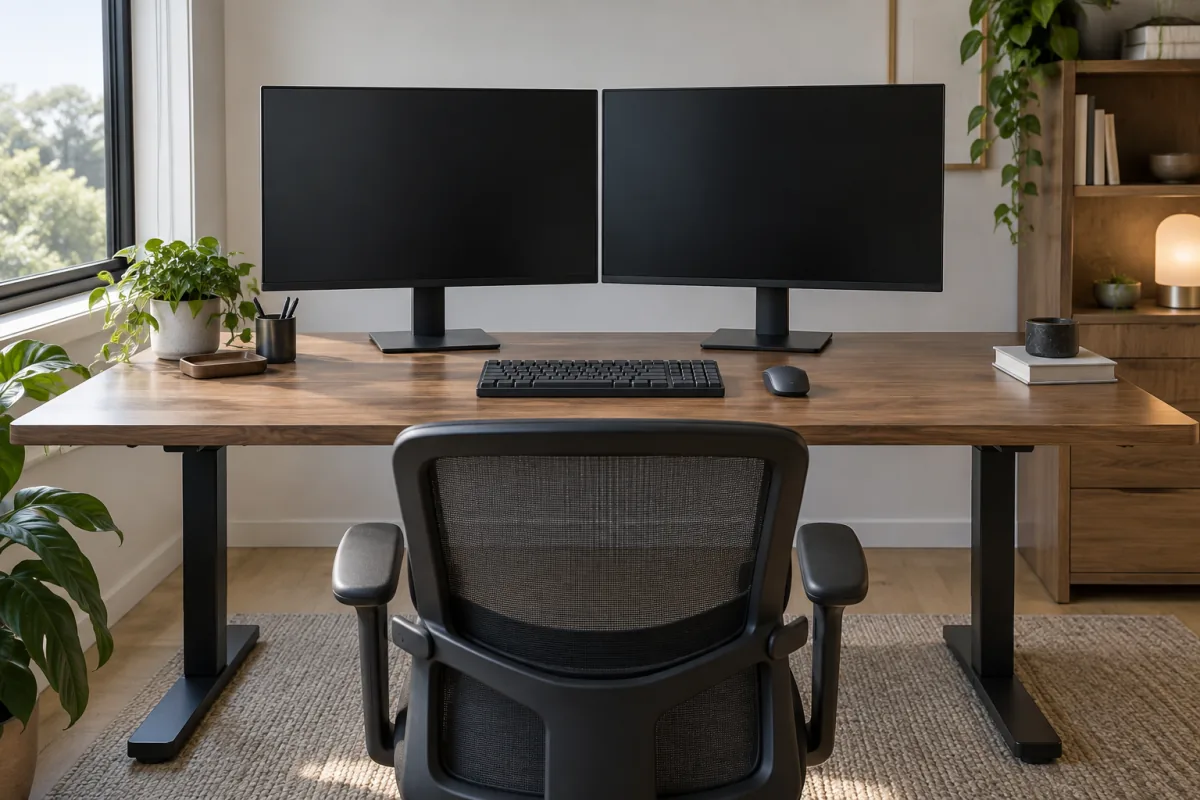
For most people working from home, a single 27-inch 1440p monitor with a USB-C port is the best buy: sharp enough for text, big enough for two windows side by side, and one cable charges the laptop while it drives the screen. A second monitor pays off if your work involves referencing one thing while typing in another, such as coding, spreadsheets with source documents, or video calls alongside notes. This guide covers the specs that matter for office work, how to decide between one screen or two, how to connect a laptop cleanly, and the setup mistakes that cause eye strain.
Key takeaways
- 27 inches at 2560 x 1440 is the sweet spot for text work. 24 inches at 1080p is fine for a second, portrait-oriented screen. 4K only matters at 32 inches or for photo and design work.
- IPS panels give consistent colour and wide viewing angles. VA panels have deeper blacks but shift colour off-axis. Avoid TN for office use.
- USB-C with at least 65 W power delivery turns the monitor into a dock. Check the wattage; some ports deliver 15 W and won’t charge a laptop.
- Match the panel’s height to your eyes: top of the screen at or slightly below eye level, arm’s length away.
- Good 27-inch 1440p office monitors sit in the low-to-mid three-figure range, with USB-C docking models a step above, at the time of writing.
One monitor or two?
Start with what your work looks like at 3 p.m. on a busy day.
| Your day looks like | Better setup | Why |
|---|---|---|
| Writing, email, browser, calls | One 27-inch 1440p | Two windows side by side fit comfortably; fewer cables and less neck turning |
| Coding, data, research with sources open | Two 27-inch, or one 34-inch ultrawide | Reference material stays visible while you work in the main window |
| Design, photo or video editing | One 27 to 32-inch 4K with good colour coverage | Resolution and colour accuracy matter more than screen count |
| Laptop is the main machine | One USB-C monitor plus the laptop screen | The laptop display becomes your second monitor for chat and calls |
Ultrawide screens (34 inches at 3440 x 1440) replace a dual setup with no bezel in the middle, which is nicer for video timelines and wide spreadsheets. They cost more than two 27-inch screens and don’t split cleanly for full-screen apps. If you share windows on video calls a lot, a dual setup is easier because you share one screen and keep notes on the other.
Specs that matter for office work
Size and resolution
What you’re really buying is pixel density. At 27 inches, 1080p looks soft (about 82 pixels per inch) and 1440p looks crisp (109 ppi). 4K at 27 inches is very sharp but you’ll run scaling at 150 percent, and some Windows apps handle that poorly. At 32 inches, 4K gives a similar density to 27-inch 1440p, so it’s the natural pairing. For a second, portrait screen, 24 inches at 1080p works because you’re reading documents, not pixel-peeping.
Panel type
IPS is the default for office use: accurate colour, no shift when you lean back, decent contrast. VA offers deeper blacks and is common in curved models, but colours drift at the edges of a wide screen. OLED monitors are beautiful but expensive and carry a burn-in risk with static taskbars over years of eight-hour days; manufacturers mitigate it, but for a work screen that shows the same layout all day it’s still a consideration.
Connectivity
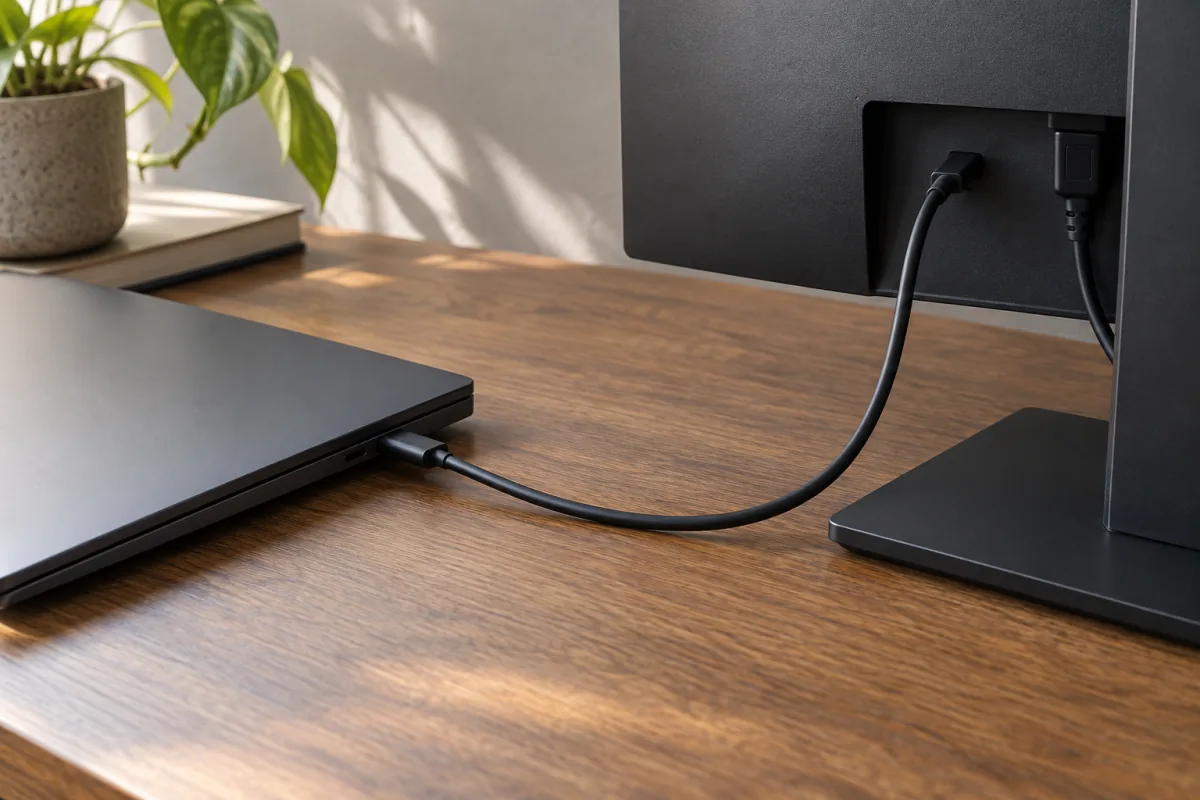
USB-C (or Thunderbolt) with DisplayPort Alt Mode and power delivery is the feature that changes daily life. One cable carries video, USB devices and laptop charging. The details to check on the manufacturer’s spec page:
- Power delivery wattage, defined by the USB Power Delivery specification. 65 W covers most 13 and 14-inch laptops. 90 to 100 W for 15 and 16-inch machines with dedicated graphics.
- Whether it has a built-in USB hub and, ideally, an Ethernet port, so a wired connection and your keyboard and mouse all come through the same cable.
- Daisy-chain support (DisplayPort MST) if you want two monitors from one laptop port. Macs don’t support MST daisy-chaining, so Mac users need two cables or a Thunderbolt dock.
Ergonomics
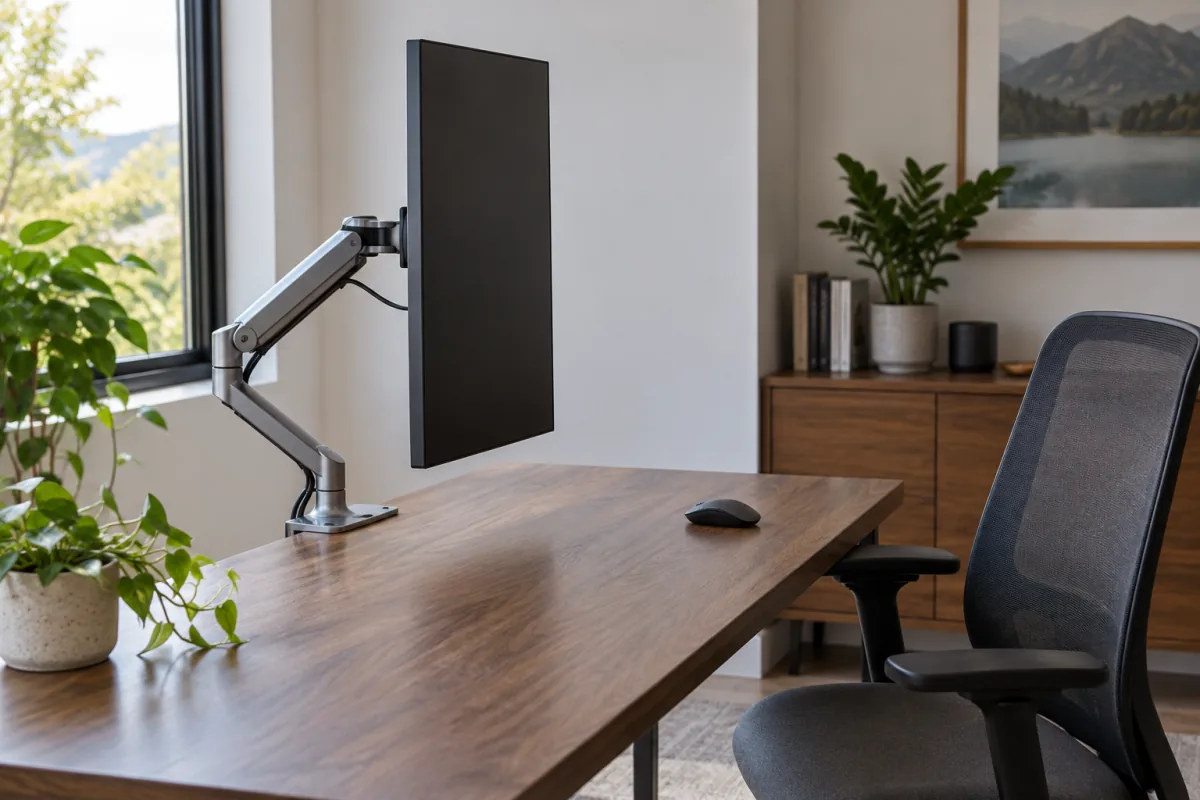
Height adjustment is non-negotiable for a screen you’ll use all day. Tilt and pivot (rotating to portrait) are useful. If a cheaper monitor lacks a good stand, a VESA arm fixes that and clears desk space; check the monitor has 100 x 100 mm VESA holes. The VESA standards body defines the mount pattern, so any compliant arm fits.
Eye comfort
Look for flicker-free backlighting and a matte anti-glare coating. A low blue light mode is nice but a warm colour temperature in the evening does the same job. Refresh rate above 60 Hz makes scrolling smoother; 75 to 100 Hz is a pleasant bonus and now common, though it isn’t essential for office work.
Connecting a laptop properly
- Check what your laptop’s USB-C port supports. On Windows, look for a DisplayPort or Thunderbolt symbol next to the port, or check the spec page. All modern Macs support video over USB-C.
- Use the cable that came with the monitor, or a cable rated for 100 W and USB 3.2 or Thunderbolt. Many charge-only cables carry no video.
- Plug in. If the screen stays black, try the other USB-C port on the laptop; on some machines only one carries video.
- In display settings, set the monitor as the main display and set scaling so text is comfortable: 100 percent at 27-inch 1440p, 125 to 150 percent at 4K.
- Arrange the displays in settings to match their physical positions so the mouse crosses over at the right edge.
- For a second monitor with no spare port, use the monitor’s daisy-chain output (Windows) or a Thunderbolt dock (Mac or Windows).
Positioning the screens
- Distance: about an arm’s length, 60 to 70 cm for a 27-inch screen.
- Height: top edge at or a little below eye level so your gaze tilts slightly down.
- Dual setup: if you use one screen most, put it straight ahead and the second angled 30 degrees to the side. If you use both equally, meet them at the centre line and angle both inward.
- Portrait second screen: excellent for documents, chat and code. Needs a pivoting stand or an arm.
- Lighting: window to the side, not behind you (reflections) or behind the screen (glare).
Pairing the monitor with a comfortable keyboard and a decent chair matters more for a full day than any panel spec.
Common mistakes
- Buying 4K at 27 inches then running 150 percent scaling, which gives you the same workspace as 1440p at a higher price.
- Assuming any USB-C port charges. Check the wattage on the spec sheet.
- Choosing a curved screen for a single 27-inch monitor. Curves help on 34-inch and wider; on smaller screens they distort straight lines in spreadsheets.
- Skipping height adjustment and stacking the monitor on books.
- Leaving the default colour mode on “Vivid” or “Game”. Switch to standard or sRGB for documents.
- Mismatching sizes and resolutions in a dual setup, so windows jump in size as you drag them across.
Budget guidance
At the time of writing, a good 24-inch 1080p IPS monitor with height adjustment costs a low three-figure sum. 27-inch 1440p IPS from Dell, LG, BenQ, Asus and others sits a step above that, and adding a 65 W or higher USB-C dock adds a further premium. 4K 27 or 32-inch screens with USB-C are the top of the office range. Beyond that you’re paying for colour accuracy or OLED, which office work doesn’t need.
Who this advice is not for
Gamers should look elsewhere: refresh rate and response time dominate that decision and this guide ignores them. Colour professionals need factory-calibrated panels with wide gamut coverage and hardware calibration, which is a separate category. And if you work from a laptop on the sofa two days a week, a portable 15-inch USB-C monitor is a better spend than a desk setup you rarely sit at. For everyone else doing documents, calls and browsers for eight hours, the 27-inch 1440p USB-C monitor is a decision you can make quickly and not regret. If you’re also choosing the machine to drive it, the laptop guide lists which ports to insist on, and the headphone guide covers the other half of a home office.
Frequently asked questions
Is a 4K monitor worth it for working from home?
At 32 inches, yes. At 27 inches you’ll scale text up and gain little over 1440p unless you edit photos or video.
What size monitor is best for a home office?
27 inches for a single screen. 24 inches for a second screen or a small desk. 32 inches or a 34-inch ultrawide if you want dual-screen space on one panel.
Do I need a curved monitor?
Only for ultrawide screens of 34 inches and up, where the curve keeps the edges at a similar distance from your eyes.
Can one USB-C cable carry video and charge my laptop?
Yes, if the monitor supports USB-C with DisplayPort Alt Mode and delivers enough watts, and the laptop’s port supports video output.
How do I set up dual monitors with a laptop?
Connect one via USB-C and the second via HDMI or DisplayPort, or daisy-chain from the first monitor on Windows, or use a Thunderbolt dock. Then arrange them in display settings.
One large monitor or two smaller ones?
Two if you share your screen on calls or run full-screen apps. One ultrawide if you work in timelines or wide spreadsheets and prefer no bezel.