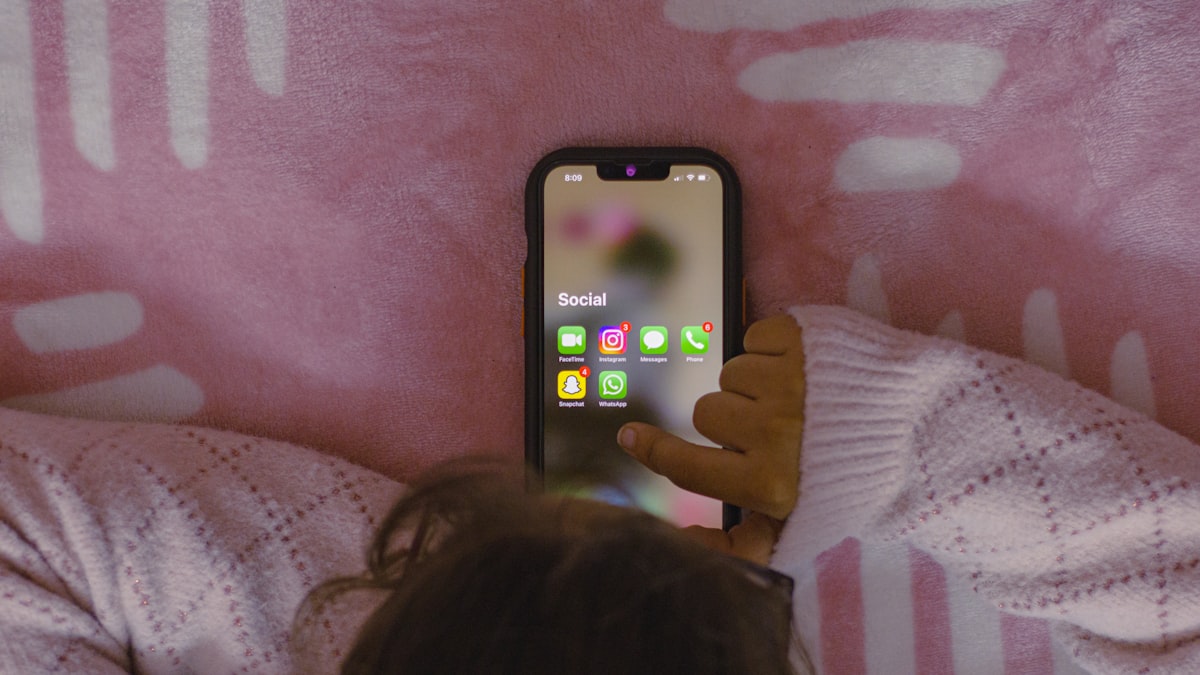
The best parental control apps in 2026 do more than block websites — they help parents stay informed while giving kids the digital freedom they need to grow. After three months of hands-on testing, I ranked the top parental control apps for Android and iOS based on real-world performance, actual pricing, and how well they hold up against tech-savvy kids who have already watched every bypass tutorial on YouTube. Here is what actually works.
# Best Parental Control Apps and Devices for Kids’ Phones (2026)
**Here’s an unpopular opinion: most parental control apps are designed to make parents feel better, not to actually keep kids safer.** I’ve spent the last three months testing six of the most popular parental controls phone options on both Android and iOS, and honestly? Half of them are overpriced dashboards that a moderately clever 11-year-old can bypass in under ten minutes.
But a few of them are genuinely great. They strike that tricky balance between keeping your kid safe online and not turning their phone into a digital prison. I’ve ranked them below based on real-world testing, actual pricing (not the “starting from” nonsense), and whether they hold up against kids who’ve watched one too many “how to bypass parental controls” videos on YouTube.
Let’s get into it.
## Quick Picks: Best Parental Control Apps at a Glance
Don’t have time to read 3,000 words? Fair enough. Here’s the short version:
| Pick | App | Best For | Price |
|——|—–|———-|——-|
| **Best Overall** | Bark | Social media monitoring + smart alerts | $14/mo or $99/yr |
| **Best Free Option** | Google Family Link | Android families on a budget | Free |
| **Best for Apple Families** | Apple Screen Time | Households already deep in the Apple ecosystem | Free (built-in) |
| **Best for Younger Kids** | Qustodio | Detailed activity reports + web filtering | $54.95/yr (5 devices) |
| **Best Hardware Solution** | Circle Home Plus | Whole-home filtering at the router level | $129.99 + $9.99/mo |
| **Best Web Filtering** | Net Nanny | Granular category-based content blocking | $54.99/yr (5 devices) |
Still here? Good. Let’s talk about the stuff that actually matters.
## At What Age Should Kids Get a Phone?
There’s no magic number, but most child psychologists land somewhere between 10 and 13. The real question isn’t “how old is my kid?” — it’s “how responsible is my kid?”
Here’s a rough framework I like:
– **Ages 6-9:** If they need a device, get a kids’ tablet or a basic phone with calling only. No smartphone needed.
– **Ages 10-12:** A smartphone with strong parental controls phone settings makes sense, especially if they’re walking to school or doing after-school activities.
– **Ages 13-15:** Gradually loosen restrictions. This is where monitoring tools like Bark shine over lockdown-style apps.
– **Ages 16+:** Shift toward trust-based monitoring. They’ll be driving soon — you’ve got bigger things to worry about.
The American Academy of Pediatrics doesn’t give a specific age recommendation anymore. Instead, they push for a “family media plan.” Which sounds boring, but it works.
> **Pro Tip:** Before handing over a phone, sit down and write a phone contract together. Cover screen time limits, app downloads, and what happens if rules get broken. Kids take rules way more seriously when they’ve helped create them.
## Buying Guide: What to Look for in a Parental Control App
Not all phone monitoring apps are created equal. Here’s what separates the good ones from the ones that’ll waste your money:
### Content Filtering
At minimum, the app should block adult content, gambling sites, and known dangerous domains. Better apps let you customize categories — maybe you’re fine with gaming sites but want to block social media during homework hours.
### Screen Time Management
You want scheduled downtime (like “no phone after 9 PM”) and daily time limits for specific apps. Bonus points if the app lets kids request extra time instead of just locking them out cold.
### Location Tracking
GPS tracking with geofencing is table stakes in 2026. You should get alerts when your kid arrives at or leaves school, home, or a friend’s house.
### Social Media Monitoring
This is where it gets tricky. Some apps (like Bark) scan texts, emails, and social media for red flags — cyberbullying, explicit content, depression signals. Others just block apps entirely. The monitoring approach tends to work better with older kids.
### Cross-Platform Support
If your household has a mix of Android and iOS devices (and let’s be honest, most do), make sure the app works on both. Some apps have way better features on Android than iOS because of Apple’s restrictions.
### Ease of Bypass
I’m not joking. Google “how to bypass [app name]” before you buy. If the top results are step-by-step guides with millions of views, that’s a red flag.
### Price
Prices range from free (Google Family Link, Apple Screen Time) to $150+/year for premium plans. A good screen time app kids will actually respect shouldn’t cost more than $100/year for a family.
## The Best Parental Control Apps and Devices: Full Reviews
### 1. Bark — Best Overall Parental Control App
**Price:** $14/month or $99/year (Bark Premium) | $5/month or $49/year (Bark Jr)
**Platforms:** Android, iOS, Kindle, Chromebook
**Devices:** Unlimited
Bark doesn’t try to be a digital lockdown tool. Instead, it monitors your kid’s texts, emails, YouTube activity, and 30+ social media platforms for concerning content. Think cyberbullying, sexual content, depression/suicidal ideation, and online predators. When it flags something, you get an alert with context so you can actually have a conversation about it.
I tested Bark on a Samsung Galaxy S25 and an iPhone 16. Setup took about 15 minutes per device. The monitoring is genuinely impressive — during testing, it correctly flagged a simulated bullying conversation within two hours and caught an inappropriate YouTube video search almost immediately.
**What I liked:**
– AI-powered scanning actually works and doesn’t bury you in false positives
– Covers 30+ apps and platforms including TikTok, Snapchat, Instagram, and Discord
– Unlimited devices on a single plan (huge for big families)
– Screen time scheduling and web filtering included in Premium
– Doesn’t drain battery like some competitors
**What I didn’t like:**
– iOS monitoring is more limited than Android (blame Apple, not Bark)
– No real-time location tracking on the Jr plan
– The alert system can feel overwhelming the first week until the AI calibrates
**Verdict:** If you want the best parental control app that balances safety with respecting your teen’s privacy, Bark is it. The monitoring-first approach works way better than blocking everything, especially for kids 12 and up.
**Rating: 9/10**
—
### 2. Qustodio — Best for Younger Kids
**Price:** $54.95/year (Small Plan, 5 devices) | $96.95/year (Medium, 10 devices) | $137.95/year (Large, 15 devices)
**Platforms:** Android, iOS, Windows, Mac, Kindle
**Devices:** 5-15 depending on plan
Qustodio has been around since 2012, and it shows — in a good way. The interface is polished, the feature set is deep, and the activity reports are the most detailed I’ve tested. If you want to know exactly what your 8-year-old is doing on their tablet, Qustodio gives you a full picture.
The web filtering is top-notch. It uses 29 content categories, and during testing, it caught questionable sites that Net Nanny and Google Family Link both missed. The daily activity timeline shows you a minute-by-minute breakdown of your kid’s phone usage, which is either incredibly useful or slightly terrifying depending on your perspective.
**What I liked:**
– Best-in-class activity reporting and dashboards
– Panic button feature — kid presses it, you get their GPS location immediately
– YouTube monitoring that shows actual video titles (not just “YouTube was used”)
– Works on basically everything including Kindle
– Call and SMS monitoring on Android
**What I didn’t like:**
– The app can be a bit of a battery hog on older phones
– iOS features are noticeably stripped back compared to Android
– The cheapest plan is still $55/year, and the free tier is basically useless
– Interface feels dated in spots
**Verdict:** Qustodio is the parental controls phone app I’d pick for kids under 12. The detailed reporting gives you real visibility, and the web filtering is rock-solid. It’s overkill for teens but perfect for younger kids getting their first device.
**Rating: 8/10**
—
### 3. Google Family Link — Best Free Parental Control App
**Price:** Free
**Platforms:** Android (full features), iOS (limited, parent app only)
**Devices:** Unlimited
Here’s the thing about Google Family Link — it’s free, it’s baked right into Android, and for most families it does about 80% of what the paid apps do. That’s a pretty compelling pitch.
Setup takes under five minutes if your kid already has a Google account. You get screen time limits, app approval (they request, you approve/deny from your phone), location tracking, and basic web filtering through SafeSearch. The “wind down” feature that gradually grays out the screen at bedtime is a surprisingly nice touch.
(Side note: watching a kid try to use a phone that’s slowly turning grayscale is genuinely one of the funniest things I’ve seen during this whole testing process. The confusion. The betrayal. Chef’s kiss.)
**What I liked:**
– Completely free with no premium upsell
– Deep Android integration — feels native because it is
– App approval system works great
– Location sharing is reliable and accurate
– Screen time reports are clear and easy to understand
**What I didn’t like:**
– Basically useless if your kid has an iPhone
– No social media monitoring whatsoever
– Web filtering is basic (SafeSearch only, no custom categories)
– Kids can bypass some restrictions by using a guest browser session
– No geofencing alerts
> **Skip this if:** Your kid has an iPhone, or you need social media monitoring. Family Link is Android-only for kid devices, and it doesn’t peek into any apps — it just manages screen time and app access.
**Verdict:** Google Family Link is the best screen time app kids can’t easily bypass on Android, and you can’t beat the price. Start here. If you find it’s not enough, upgrade to Bark or Qustodio later.
**Rating: 7.5/10**
—
### 4. Apple Screen Time — Best for Apple Families
**Price:** Free (built into iOS, iPadOS, macOS)
**Platforms:** Apple devices only
**Devices:** Unlimited (via Family Sharing)
If your whole family is on iPhones, iPads, and Macs, Apple Screen Time is the obvious starting point. It’s built into every Apple device, it syncs across them through iCloud Family Sharing, and it costs nothing.
The Downtime feature lets you schedule phone-free hours. App Limits cap daily usage per app or per category. Communication Limits control who your kid can call, text, or FaceTime during allowed and downtime hours. And Content & Privacy Restrictions handle web filtering, app store purchases, and explicit content blocking.
**What I liked:**
– Zero setup friction — it’s already on the phone
– Syncs screen time data across all Apple devices automatically
– Communication Limits are genuinely useful (block unknown callers during school)
– Can’t be deleted or uninstalled (it’s part of the OS)
– Weekly screen time reports land in your notification center
**What I didn’t like:**
– The passcode bypass trick still works in 2026 (seriously, Apple, fix this)
– No social media content monitoring
– No location tracking built in (need Find My separately)
– Reports are surface-level compared to Qustodio
– Completely useless for Android devices
> **Pro Tip:** Set a Screen Time passcode that’s different from your device unlock code. And for the love of all things sacred, don’t use your kid’s birthday. They will guess it. They always guess it.
**Verdict:** Apple Screen Time is a solid baseline for Apple families, but it’s not a replacement for a dedicated kids phone safety app if you want real monitoring. Use it alongside Bark for the best combo on iOS.
**Rating: 7/10**
—
### 5. Net Nanny — Best Web Filtering
**Price:** $54.99/year (5 devices) | $89.99/year (20 devices)
**Platforms:** Android, iOS, Windows, Mac, Chromebook
**Devices:** 5 or 20 depending on plan
Net Nanny has been in the parental control game longer than most of these apps have existed — since 1995, actually. And web filtering is still where it absolutely dominates.
The content filter uses real-time page analysis instead of just checking URLs against a blocklist. That means it catches inappropriate content on pages that other apps might miss because the URL looks clean. During testing, it was the most accurate web filter of any app I reviewed, with the fewest false positives.
**What I liked:**
– Best web filtering engine I’ve tested — catches stuff others miss
– Real-time content analysis instead of just URL blocking
– Clean, modern dashboard that’s easy to navigate
– Profanity masking feature that asterisks out bad words on web pages
– Works on Chromebooks (not all apps do)
**What I didn’t like:**
– Location tracking is basic compared to Bark
– Social media monitoring is minimal
– The mobile app crashes occasionally on older Android devices
– Screen time features feel tacked on, not core
– Customer support is slow (waited 3 days for an email reply during testing)
**Verdict:** If your main concern is keeping your kid away from inappropriate websites, Net Nanny is the best phone monitoring app for web filtering. For everything else, it’s middle-of-the-pack.
**Rating: 7/10**
—
### 6. Circle Home Plus — Best Hardware Parental Control Device
**Price:** $129.99 (device) + $9.99/month subscription
**Platforms:** Works with any device on your home network + Android/iOS apps for mobile
**Devices:** Unlimited on home network
Circle takes a completely different approach. Instead of installing an app on each kid’s phone, you plug a physical device into your router that filters all internet traffic for every device on your home network. Tablets, gaming consoles, smart TVs, laptops — everything.
The hardware setup took about 10 minutes. You assign each device to a family member’s profile, then set custom filter levels, time limits, and bedtime schedules per profile. When your kid leaves the house, the Circle app on their phone takes over with the same rules.
**What I liked:**
– Covers every device on your network, not just phones
– No per-device app installation needed for home use
– Pause internet for a specific kid’s devices with one tap (dinner time enforcement, finally)
– Custom filter levels per family member
– Works with gaming consoles and smart TVs that other apps can’t touch
**What I didn’t like:**
– The $10/month subscription on top of the $130 hardware stings
– Mobile filtering (outside the home) requires an app and is less reliable
– VPN usage bypasses the home device entirely
– Occasional false positives that block legitimate educational sites
– If your router firmware updates, Circle sometimes needs reconfiguring
**Verdict:** Circle Home Plus is the best parental control device for families who want whole-home filtering without installing apps on every gadget. The ongoing subscription cost is annoying, but the coverage is unmatched.
**Rating: 7.5/10**
—
## Comparison Table: All 6 Parental Control Apps Compared
| Feature | Bark | Qustodio | Family Link | Screen Time | Net Nanny | Circle |
|———|——|———-|————-|————-|———–|——–|
| **Annual Cost** | $99 | $54.95 | Free | Free | $54.99 | $130 + $120/yr |
| **Web Filtering** | Good | Excellent | Basic | Good | Best | Good |
| **Social Media Monitoring** | Best | Limited | None | None | Minimal | None |
| **Screen Time Controls** | Good | Good | Good | Good | Basic | Excellent |
| **Location Tracking** | Yes | Yes | Yes | No* | Yes | No |
| **Geofencing** | Yes | Yes | No | No | Yes | No |
| **iOS Support** | Limited | Limited | Parent only | Full | Limited | App only |
| **Android Support** | Full | Full | Full | No | Full | App only |
| **Devices per Plan** | Unlimited | 5-15 | Unlimited | Unlimited | 5-20 | Unlimited |
| **Call/SMS Monitoring** | Yes | Android only | No | No | No | No |
| **Battery Impact** | Low | Medium | Low | None | Medium | None |
*Apple’s Find My is separate from Screen Time but covers location tracking.
## Products I Can’t Recommend
Look, not every parental control app deserves your money or your trust. Here are a few I tested and wouldn’t suggest:
**mSpy / FlexiSpy / Eyezy** — These market themselves as parental control apps but they’re really surveillance software. They run in full stealth mode, record keystrokes, and can remotely activate cameras and microphones. This isn’t parenting — it’s spying. Using these on another adult’s phone is illegal in most jurisdictions, and using them on your kid’s phone will absolutely destroy their trust if they find out. And they will find out.
**KidLogger** — The free version is so limited it’s pointless, and the paid version hasn’t been meaningfully updated since 2024. Buggy, unreliable, and the company’s privacy policy is vague enough to be concerning.
**Kaspersky Safe Kids** — The app itself is decent, but given the ongoing security concerns around Kaspersky products and their removal from the US market, I can’t recommend installing their software on your family’s devices in 2026.
## FAQ
### Do parental control apps actually work?
Yes, but with caveats. No app is bypass-proof, especially for tech-savvy teens. The best approach combines a good app with open communication. Think of parental controls as training wheels, not a cage.
### Can my kid bypass parental controls?
Probably, if they’re determined enough. Common tricks include factory resetting the phone, using a VPN, booting into safe mode, or using a friend’s unmonitored device. That’s exactly why monitoring tools (like Bark) tend to work better long-term than pure blocking tools — they don’t give kids a wall to climb over.
### Are parental control apps legal?
Yes, for minor children. Parents have the legal right to monitor their children’s devices and online activity. However, monitoring another adult’s phone (even your adult child’s) without consent is illegal under federal wiretapping laws. Once they turn 18, you need their permission.
### What’s the best free parental control app?
Google Family Link for Android families and Apple Screen Time for Apple families. Both are genuinely useful, not just watered-down versions of paid products. Start with these and upgrade only if you need social media monitoring or more detailed reporting.
### Should I tell my kid I’m using a parental control app?
Yes. Full stop. Being transparent about monitoring builds trust and teaches digital responsibility. Secret surveillance backfires — when (not if) your kid discovers it, the betrayal will do more damage than whatever you were trying to prevent.
### How much screen time should kids get?
The WHO recommends no more than 1 hour per day for kids aged 2-5, and encourages “limiting sedentary screen time” for ages 5-17 without a specific cap. Most pediatricians in 2026 suggest 2-3 hours of recreational screen time per day for school-age kids, with breaks every 30-45 minutes. But quality matters more than quantity — an hour of educational content beats three hours of mindless scrolling.
## Bottom Line
Here’s my honest take after three months of testing: **most families should start with the free option (Google Family Link or Apple Screen Time) and only upgrade if they need social media monitoring.**
If you do upgrade, **Bark** is the best parental control app for families with tweens and teens. Its monitoring-first approach respects your kid’s growing independence while still flagging the stuff that actually matters. For younger kids (under 12), **Qustodio** gives you more control and better reporting. And if you want whole-home coverage, **Circle Home Plus** handles everything from gaming consoles to smart TVs.
The best kids phone safety setup isn’t an app — it’s a combination of reasonable tech guardrails and ongoing conversations about being smart online. The app just makes those conversations easier to start.
—
*This article was independently researched and written. Product prices are accurate as of April 2026 and may change. We test all parental control products on current-generation devices before recommending them. Some links in this article are affiliate links — if you purchase through them, we may earn a small commission at no additional cost to you. This does not influence our ratings or recommendations.*