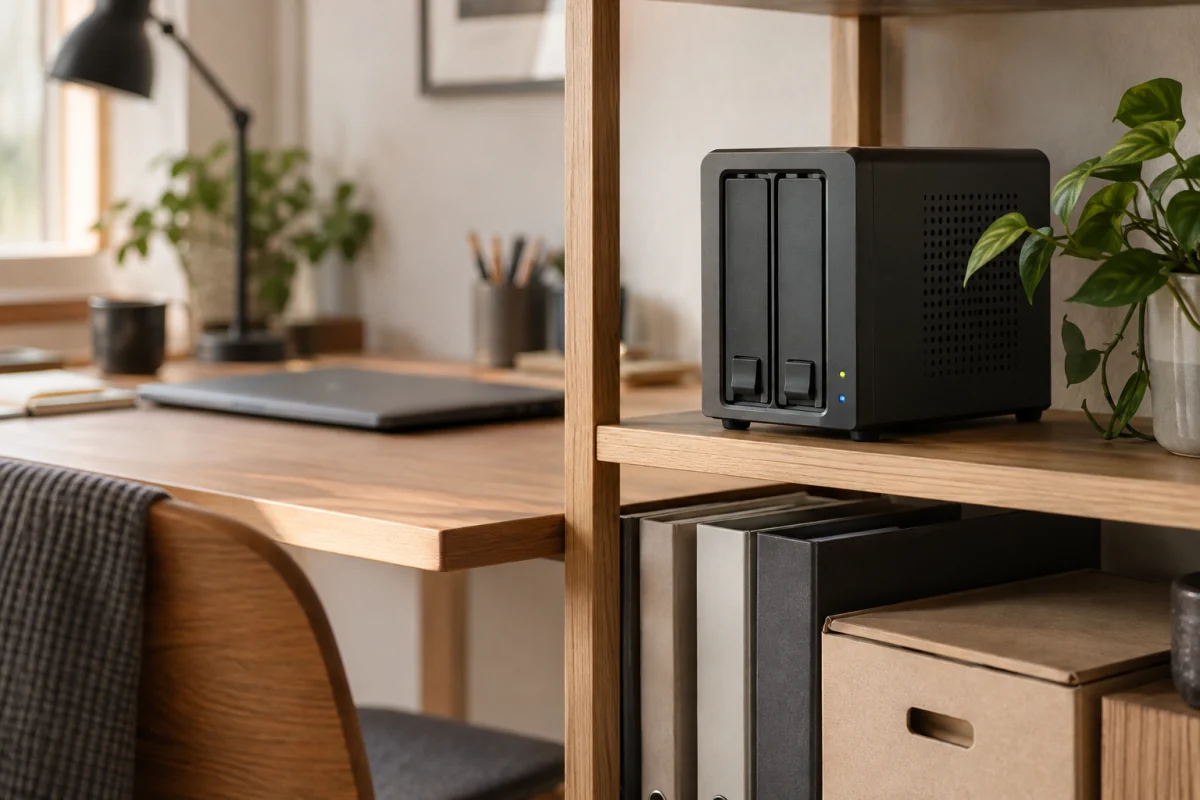
A two-bay NAS with two mirrored drives is the right backup box for almost every home office. It sits on your network, copies files from every computer in the house on a schedule, and keeps working if one drive dies. Synology is the easier system to live with. QNAP gives you more hardware for the money and expects you to do more of the setup. This guide explains which bays, drives and software features matter, how to set the thing up so it actually backs up, and where a NAS is the wrong answer.
Key takeaways
- Two bays in a mirror (RAID 1 or Synology SHR) covers a home office. Four bays only make sense if you already hold more than 8 TB or shoot a lot of video.
- Budget for the drives separately. NAS-rated drives (WD Red Plus, Seagate IronWolf, Toshiba N300) cost more than desktop drives and are worth it for a box that runs 24 hours a day.
- A NAS is not a backup on its own. Pair it with an off-site copy, either cloud or a drive you keep elsewhere.
- Pick Synology if you want it to just work. Pick QNAP if you want an HDMI port, more RAM, faster networking, and don’t mind menus.
- Expect to spend a low three-figure sum on the enclosure and about the same again on two drives, at the time of writing.
What a NAS does that an external drive doesn’t
NAS stands for network attached storage. It is a small always-on computer that holds hard drives and shares them over your home network. The difference from a USB external drive comes down to three things.
- It backs up every device, not just the one it’s plugged into. Laptops, desktops and phones all push files to it over Wi-Fi.
- It keeps running when you’re not thinking about it. Backups happen at 2 a.m. on a schedule, so nobody has to remember to plug anything in.
- It tolerates a drive failure. With two drives mirrored, one can die and your data is still there while you swap in a replacement.
What it does not do is protect you from fire, theft, ransomware that spreads across your network, or your own mistakes if you delete a file and the deletion syncs. For that you need snapshots (covered below) and an off-site copy. Our cloud backup comparison covers the off-site half.
How many bays you need
Bays are the slots that hold drives. Most home offices should stop at two.
| Bays | Usable space with redundancy | Who it suits |
|---|---|---|
| 1 | None (no redundancy) | Nobody who cares about the data. Skip it. |
| 2 | Half of total (mirror) | Freelancers, families, small home offices. Two 8 TB drives give 8 TB usable. |
| 4 | Roughly three quarters (RAID 5 or SHR) | Photographers, video editors, anyone past 10 TB or running a media server. |
A useful rule: add up what you hold today, double it, and pick the drive size that covers that. If the answer is under 8 TB, two bays is plenty. If you’re already at 10 TB and growing, go to four bays now rather than migrating later, because moving data between enclosures is slow and easy to get wrong.
Synology vs QNAP: the real differences
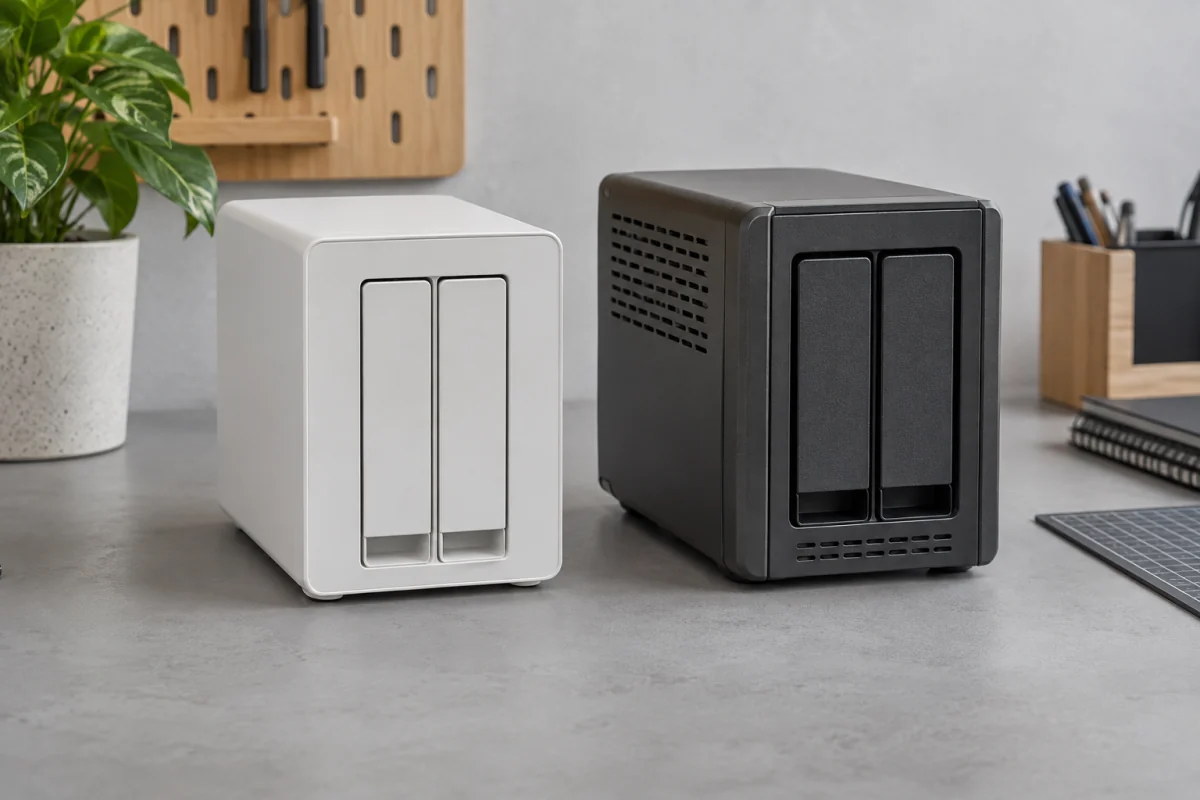
Both companies make solid hardware. The choice is really about the operating system and how much you want to tinker.
Synology (DSM)
DiskStation Manager looks like a desktop in a browser tab. Setup walks you through creating a storage pool, and the default SHR mode lets you mix drive sizes and upgrade one at a time. Its backup apps are the reason people buy it: Hyper Backup pushes copies to cloud storage or another NAS, Active Backup for Business images whole Windows and Mac machines, and Synology Photos handles phone photo uploads. The trade-off is that Synology under-specs hardware for the price, and its newer models are picky about which drives they officially support. Check the compatibility list on Synology’s site before you order drives.
QNAP (QTS)
QNAP tends to give you more for the same money: more RAM, 2.5 GbE ports, an HDMI output, and often a faster processor. QTS has grown a lot and does everything DSM does, but the menus are busier and it’s easier to leave something misconfigured. QNAP also had a rough run of ransomware incidents a few years ago that hit boxes exposed to the internet. The fix is the same on either brand: never forward ports to your NAS, keep it updated, and turn on automatic updates.
Other brands
Asustor, TerraMaster and UGREEN sell capable hardware at lower prices. Their software is usable but the app ecosystems are thinner and community help is harder to find. They make sense if you’re comfortable troubleshooting or plan to install a third-party OS like TrueNAS or Unraid. If you want a box that a non-technical partner can also use, stay with Synology or QNAP.
Specs that actually matter
Processor
For file backup, any current model is fast enough. Intel-based models (Celeron, Pentium, or the newer N-series) matter if you want hardware video transcoding for Plex or want to run Docker containers. ARM-based models are fine for backup and photo storage and use less power.
RAM
2 GB is the floor for backup only. 4 GB or more if you’ll run containers, a media server, or Synology’s Active Backup. Look for a model where RAM is upgradeable; a stock 2 GB unit that accepts an 8 GB stick is a cheap way to future-proof.
Network port
A single 1 GbE port moves about 110 MB/s. That saturates with a single spinning drive, so it’s fine for backup. 2.5 GbE matters if you edit video straight off the NAS or move very large files daily, and your switch and computer also need 2.5 GbE to benefit. The mesh Wi-Fi guide explains why wired beats wireless here.
Drive support
Two things to check: the maximum drive size the model supports, and whether it takes M.2 NVMe SSDs as cache. Cache helps when many small files are read often. It does nothing for a nightly backup job.
Choosing the drives
Buy NAS-rated drives. Desktop drives are built for eight hours a day and can drop out of a RAID array under sustained load. The common lines are WD Red Plus, Seagate IronWolf and Toshiba N300, all CMR (conventional magnetic recording). Avoid anything labelled SMR (shingled) for a NAS; it slows badly on rebuilds. Seagate publishes the recording technology per model on its IronWolf product pages, and WD does the same for Red Plus.
Two more rules:
- Buy both drives from the same size class but not necessarily the same batch. Two identical drives bought together sometimes fail close together.
- Bigger drives per terabyte are usually cheaper up to around 8 to 12 TB. Above that the premium climbs.
Setting it up so it actually backs up
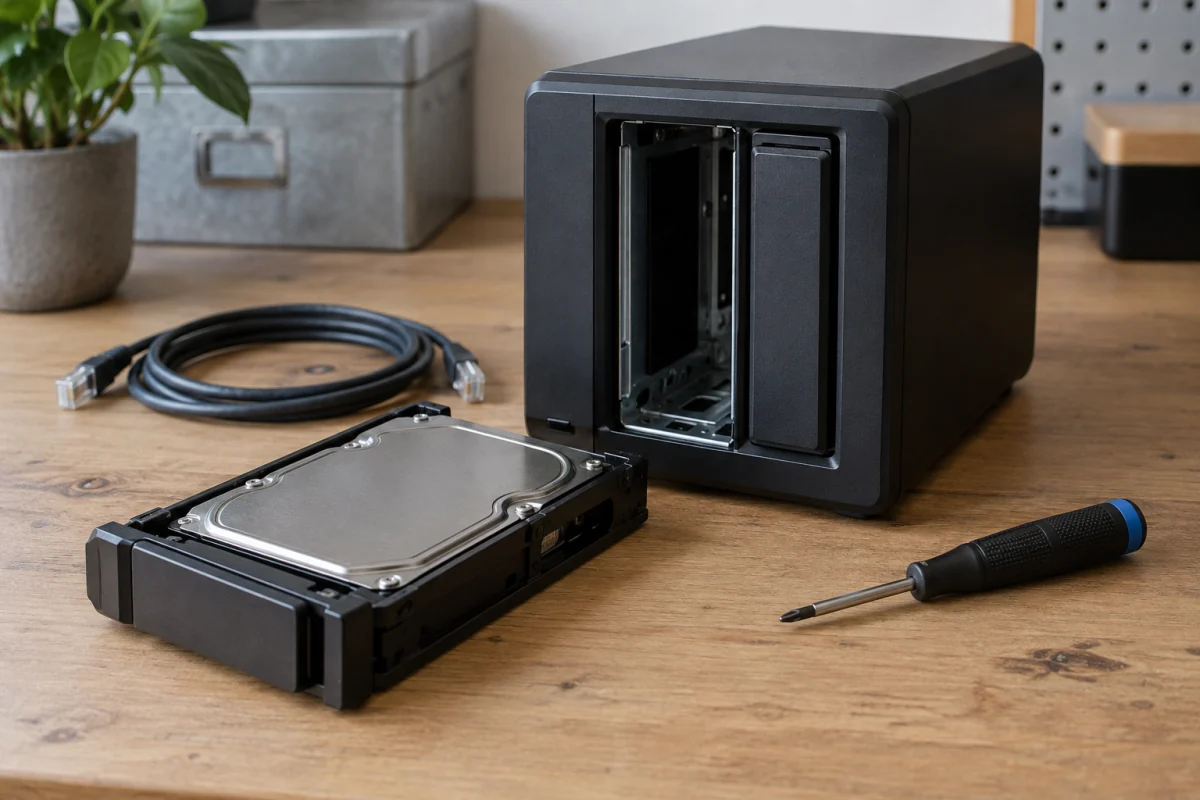
- Install the drives and power on. Use the finder tool from the manufacturer (Synology Assistant or Qfinder) to locate the box on your network.
- Create a storage pool with redundancy. On Synology choose SHR; on QNAP choose RAID 1 for two bays or RAID 5 for four.
- Choose Btrfs as the file system if offered. It enables snapshots.
- Create one shared folder per person or per purpose, with a separate user account for each family member.
- Turn on snapshots for every shared folder, hourly for a week and daily for a month. This is your undo button for ransomware and accidental deletes.
- Install the backup client on each computer. Synology Drive or Active Backup, QNAP NetBak or Qsync. Point it at that computer’s folder.
- Set up the phone app for photo upload. Synology Photos or QNAP Qfile.
- Configure the off-site copy. Hyper Backup or Hybrid Backup Sync to a cloud bucket, or to a second NAS at a relative’s house.
- Enable automatic updates and email notifications for drive health.
- Do a test restore. Delete a test file, get it back from a snapshot. Then restore one file from the cloud copy. Backups you have never restored are a guess.
Security: keep it off the open internet
Most NAS break-ins happen because someone forwarded a port on their router so they could reach files from a coffee shop. Don’t. Use the manufacturer’s relay service (QuickConnect or myQNAPcloud Link) or, better, a VPN back to your home network. A VPN-capable router makes this a one-time setup. Also turn on two-factor authentication for the admin account, disable the default admin user, and set the firewall to block regions you’ll never log in from.
Common mistakes
- Treating the NAS as the only copy. Two drives in one box in one house is still one location.
- Filling it to 95 percent. Keep 10 to 15 percent free or snapshots and rebuilds get slow.
- Ignoring the beeps. A degraded array warning means a drive died. Replace it that week, not that year.
- Buying a four-bay box and only ever putting two drives in it. You paid for capacity you never used.
- Running it in a closed cupboard. Spinning drives like airflow, and hot drives fail sooner.
Who should not buy a NAS
If you have one laptop and under 1 TB of files, a cloud backup subscription plus an occasional external drive is cheaper, simpler and more resilient than a NAS. If you’re renting and move often, a NAS is another thing to unplug and re-set. And if nobody in the house will check a health alert, an unattended NAS with a dead drive is just a slow way to lose everything. A NAS earns its place when several machines need protecting, when your data outgrows cloud plans, or when you want local speed for large files. Otherwise a service that keeps a copy off-site is the better first step. For sensitive files you carry around, an encrypted USB drive covers the gap.
Frequently asked questions
Is a NAS better than an external hard drive for backup?
For more than one computer, yes. It runs on a schedule without being plugged in and survives a single drive failure. For a single laptop, an external drive plus cloud backup is simpler and cheaper.
How much storage do I need?
Add up your current files, double it, and buy drives that cover that number after redundancy. Two 4 TB drives mirrored give 4 TB usable, which is enough for most document and photo collections.
Can I reach my NAS files when I’m away from home?
Yes, through the manufacturer’s relay service or a VPN into your home network. Avoid forwarding router ports directly to the NAS.
How loud is a NAS?
The fans are quiet. The drives are not silent, especially during a backup. Put it in a spare room or a ventilated shelf rather than on a desk.
Do I need special hard drives?
Use NAS-rated CMR drives. They are designed for continuous operation and behave better in RAID than desktop drives.
Synology or QNAP, which should I pick?
Synology if you value simple software and strong backup apps. QNAP if you want better hardware per dollar and are happy to spend a weekend learning the menus.