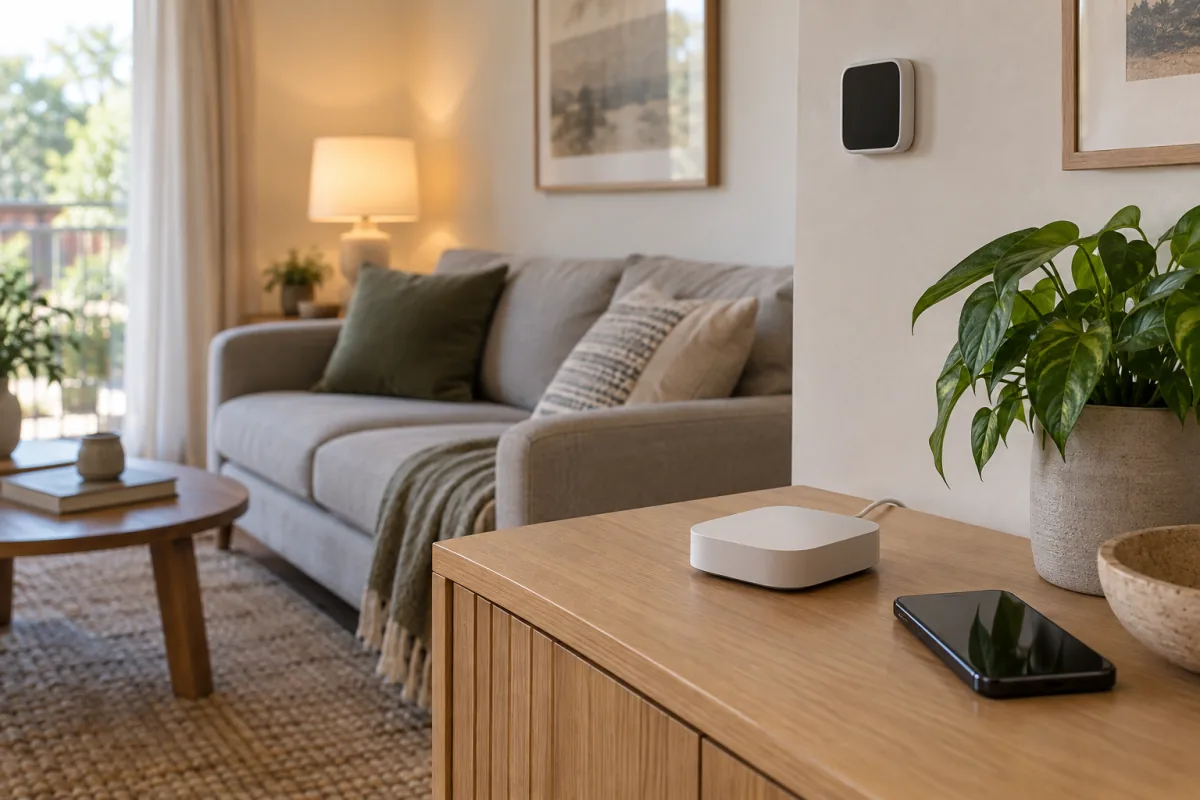
Starting a smart home in 2026 is simpler than it was five years ago, for one reason: Matter. Buy devices with the Matter logo and they will work with Google Home, Amazon Alexa, Apple Home and Samsung SmartThings, so you are not locked into the first assistant you happen to pick. The practical plan for a beginner is to choose the assistant already on your phone, buy three devices with the highest daily payoff (smart plugs, a couple of bulbs, and a thermostat or video doorbell), name them by room, and change a handful of privacy settings on day one. This guide explains each of those steps, what Matter, Thread and Zigbee mean for you, and the mistakes that cost people money.
Key takeaways
- Pick the ecosystem that matches your phone and speakers: Google Home for Android, Apple Home for iPhone, Alexa if you already own Echo speakers. Home Assistant is for people who enjoy tinkering.
- Matter is a shared language for devices; Thread and Zigbee are the low-power radios many of them use. Buy Matter where you can, and check the packaging for which radio it needs.
- You need a hub only for Thread or Zigbee devices. Many speakers and streaming boxes already include one.
- Smart plugs, bulbs and a thermostat give the most benefit for the least money and setup effort.
- Name devices by room and function (“Kitchen counter lights”) before you add the tenth one, or voice control becomes a guessing game.
Pick an ecosystem
Every smart home has one app that acts as the control centre and one voice assistant behind it. Choose it first, because it decides which speakers, displays and hubs you buy.
| Ecosystem | Best if | Strengths | Weak spots |
|---|---|---|---|
| Google Home | You use Android and Google services | Strong voice assistant, Nest cameras and thermostats, good automation editor on the web | Fewer non-Google cameras integrate deeply |
| Amazon Alexa | You already own Echo speakers | Largest range of compatible devices and cheap speakers, routines are easy | App is cluttered; some features need a subscription |
| Apple Home | Everyone in the house uses iPhone | Local control, strongest privacy defaults, simple app | Smaller device catalogue, needs an Apple TV or HomePod as a hub |
| Samsung SmartThings | You own Samsung TVs or appliances | Broad Zigbee and Matter support, works with Alexa and Google too | Automation rules can be fiddly |
| Home Assistant | You like configuring things | Runs locally, supports almost everything, no cloud dependency | Needs a small computer or dedicated box and some patience |
If the household is split between iPhone and Android, Alexa or SmartThings sit in the middle best. And because Matter devices can join more than one ecosystem at once (a feature called multi-admin), you can add a bulb to both Apple Home and Google Home and let each person use their preferred app.
Matter, Thread, Zigbee and Wi-Fi: what each one means for you
These four words appear on every box, and they answer two different questions: what language does the device speak, and what radio does it use.
- Matter is the language. It is an open standard run by the Connectivity Standards Alliance (CSA) and backed by Apple, Google, Amazon and Samsung. A Matter device is set up by scanning a QR code and works with any Matter controller. The CSA lists the device types Matter covers, from lights and plugs to locks, thermostats and robot vacuums, on its Matter overview page.
- Thread is a low-power mesh radio that many Matter devices use. Battery sensors, locks and bulbs on Thread pass messages between each other, so range improves as you add devices. Thread needs a “border router” to reach your network; recent Apple TV, HomePod, Nest Hub, Echo and Eero models include one. The Thread Group’s overview explains the mesh design.
- Zigbee is an older low-power mesh radio, still used by Philips Hue, IKEA, Aqara and many sensors. Zigbee devices need their maker’s hub or a SmartThings or Home Assistant hub, and then reach Matter through that hub as a “bridge”.
- Wi-Fi is what plugs, cameras and appliances use because they have mains power. Simple to set up, no hub needed, but every device takes a slot on your router.
Practical translation: a device labelled “Matter over Thread” needs a border router you probably already own. A device labelled “Matter over Wi-Fi” needs nothing extra. A Zigbee device needs its own hub. A device with no Matter logo at all works only through its maker’s app and whatever assistant that app supports.
Do you need a hub?
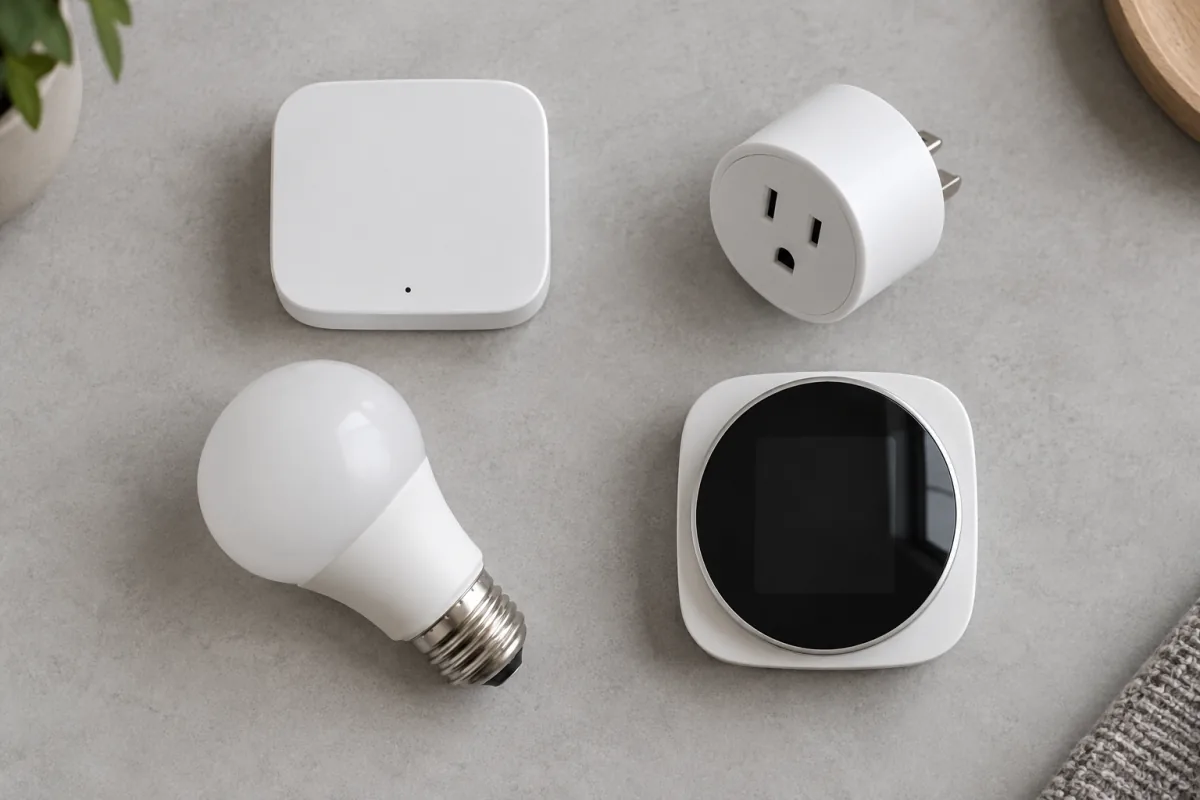
Only if you buy Thread or Zigbee devices, and even then you may already have one. Check what you own:
- Apple Home requires a home hub for remote access and automations: an Apple TV 4K (2021 or later) or a HomePod. Both are Thread border routers.
- Google Home: Nest Hub (2nd gen), Nest Wifi Pro and the Google TV Streamer include Thread.
- Alexa: Echo (4th gen), Echo Hub and recent Eero routers include Thread and, on some models, Zigbee.
- SmartThings: the SmartThings Station or Hub, or a recent Samsung TV with SmartThings built in.
If you plan to stay with Wi-Fi plugs, bulbs and cameras only, skip the hub. Add one when you buy your first battery sensor or lock, because those are the devices where Thread’s low power and local response make a difference.
The first three devices with the best payoff
Prices are ranges at the time of writing and vary by region and sales.
- Smart plugs (8 to 20 US dollars each). Turn a lamp, fan, heater or coffee machine into a scheduled or voice-controlled device with no wiring. Buy a Matter-certified plug from a known maker (TP-Link Tapo, Meross, Eve, Amazon Basics) rather than the cheapest no-name listing. Energy-monitoring models show what an appliance costs to run.
- Smart bulbs or a smart switch (10 to 50 dollars per bulb, 25 to 60 per switch). Bulbs are simplest and give colour and dimming; a smart wall switch is better for rooms with several fittings and for guests who will use the wall switch anyway. Start with the room you spend evenings in.
- A thermostat or a video doorbell (100 to 250 dollars). A thermostat with schedules and presence detection is the device most likely to pay for itself; our guide to smart thermostats covers compatibility with your heating. A video doorbell is the other common first “serious” purchase. If security is the priority, a smart lock comes next; see our guide to smart locks for what to check about your door before buying.
Those three cover schedules, convenience and the first noticeable saving. Leave cameras, sensors and robot vacuums for month two, once you know which ecosystem feels right.
Wi-Fi capacity and naming rooms properly
Every Wi-Fi device, however small, holds a connection to your router. Most home routers cope with 30 to 50 devices before things get flaky, and a smart home with cameras, plugs, bulbs and speakers reaches that faster than you expect. Two fixes: put smart devices on the 2.4 GHz band, which has better range and is what most of them require anyway, and if you have dead spots or more than about 30 devices, move to a mesh system; our guide to mesh Wi-Fi systems explains what to look for. Thread and Zigbee devices do not use Wi-Fi at all, which is another reason to prefer them for sensors and bulbs.
Naming matters more than it sounds. Assign every device to a room in the app, and name it by what it is rather than by brand or model: “Bedroom lamp”, not “Tapo P110 3”. Then “turn off the bedroom” works. Do this as you add each device; renaming twenty devices later is a tedious evening.
Privacy settings to change on day one
Smart home devices collect a lot by default. Ten minutes in the settings reduces it.
- Voice recording retention. Google Home: Google Account, Data & privacy, Web & App Activity, set auto-delete to 3 months or turn off audio saving. Alexa: Alexa app, More, Settings, Alexa Privacy, Manage Your Alexa Data, choose not to save recordings. Apple Home: Siri processes many requests on device; check Settings, Siri, Siri & Dictation History.
- Microphone off when not needed. Every speaker and display has a hardware mute switch. Use it in bedrooms.
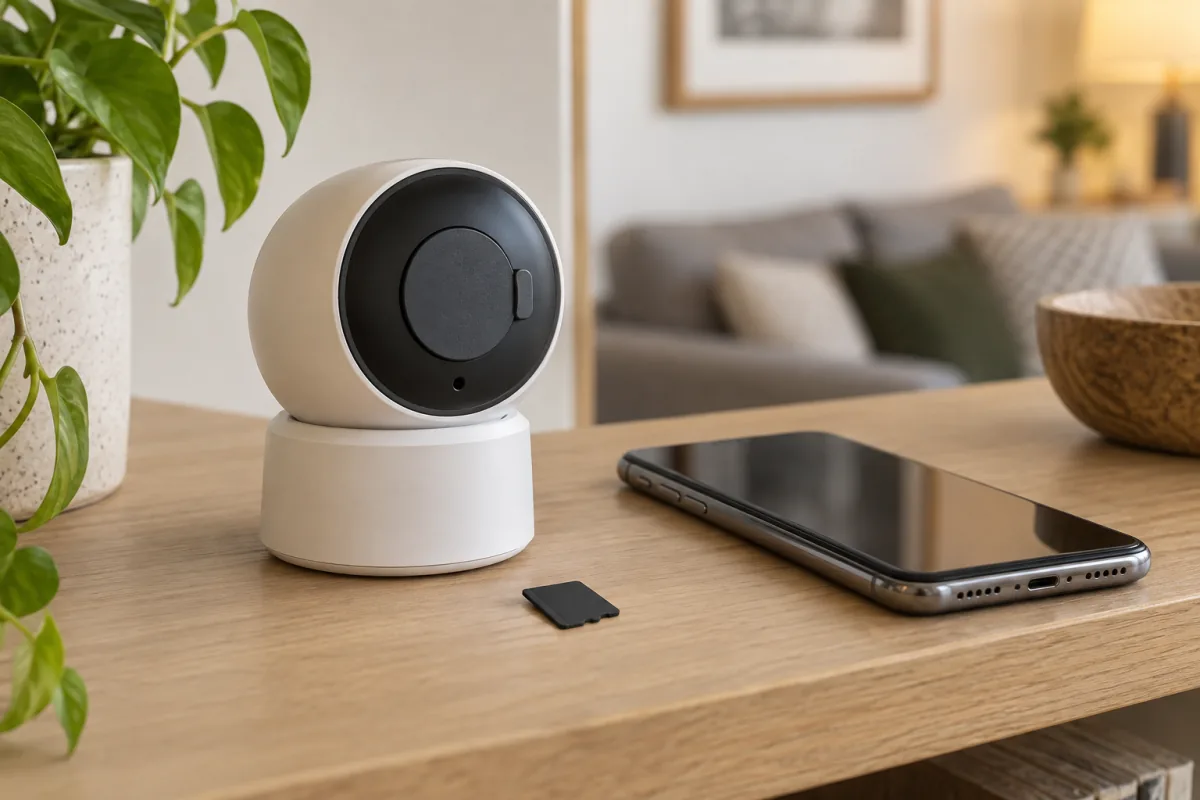
- Camera privacy zones and local storage. Mask the neighbour’s window in the camera’s settings. Prefer cameras that record to a microSD card or a home hub so footage does not depend on a cloud subscription.
- Two-factor authentication. Turn it on for the ecosystem account and for every device-maker account (Hue, Tapo, Ring and so on). A smart lock or camera is only as safe as the login.
- Guest network for cheap Wi-Fi devices. Many routers let you put IoT devices on a separate network so a compromised plug cannot reach your laptop.
- Turn off “personalised ads” and “help improve” toggles. They sit in each app’s privacy section and do nothing for you.
Mistakes that cost money
- Mixing standards without a plan. One Zigbee bulb, one Wi-Fi bulb and one Thread bulb in the same room means three apps and three points of failure. Pick Matter-certified devices and one radio family for lights.
- Cheap no-name plugs. Unbranded plugs from marketplace listings have been found without proper safety certification, and their apps often stop working when the seller disappears. Look for a recognised safety mark (UL, ETL, CE) and a maker with a support page.
- Cameras without local storage. A camera that only records to the cloud becomes a paperweight when the subscription lapses or the company changes its terms.
- Buying a hub you already own. Check the list above before adding a standalone Thread or Zigbee hub.
- Smart bulbs behind dumb switches. If someone flips the wall switch, the bulb loses power and every automation fails. Use a smart switch in that room, or a switch cover.
- Automating before living with it. Use the devices manually for two weeks, then build automations around what you actually do.
Who this guide is not for
If you rent and cannot change wiring, thermostats and switches are off the table; stick to plugs, bulbs and battery-powered sensors, which all leave when you do. If you want a fully local system with no cloud accounts at all, go straight to Home Assistant and expect a weekend of setup rather than an hour. And if your Wi-Fi already struggles with laptops and phones, fix the network first, because a smart home built on a weak router is a daily annoyance.
Frequently asked questions
Do Matter devices work with all assistants?
Yes, with the major four: Apple Home, Google Home, Amazon Alexa and Samsung SmartThings, plus Home Assistant. The device has to be a Matter-certified type that the assistant supports; support for newer categories such as robot vacuums and appliances arrived at different times on each platform, so check the assistant’s compatibility list for anything beyond lights, plugs, sensors, locks and thermostats.
Can I mix Alexa and Google Home?
Yes. Matter’s multi-admin feature lets one device join both at the same time, so an Echo in the kitchen and a Nest Hub in the living room can both control the same bulbs. Non-Matter devices need to be linked to each assistant separately through the maker’s skill or integration.
Does a smart home need a hub?
Not for Wi-Fi devices. For Thread devices you need a border router, which most recent speakers, streaming boxes and mesh routers already include. For Zigbee devices you need the maker’s hub or a multi-protocol hub such as SmartThings.
Will smart devices slow my Wi-Fi?
Each device uses very little bandwidth, but each one occupies a connection on the router. Beyond about 30 devices, cheaper routers start dropping connections. Cameras are the exception: a few streaming in high definition can use real bandwidth on upload. Thread and Zigbee devices do not touch Wi-Fi at all.