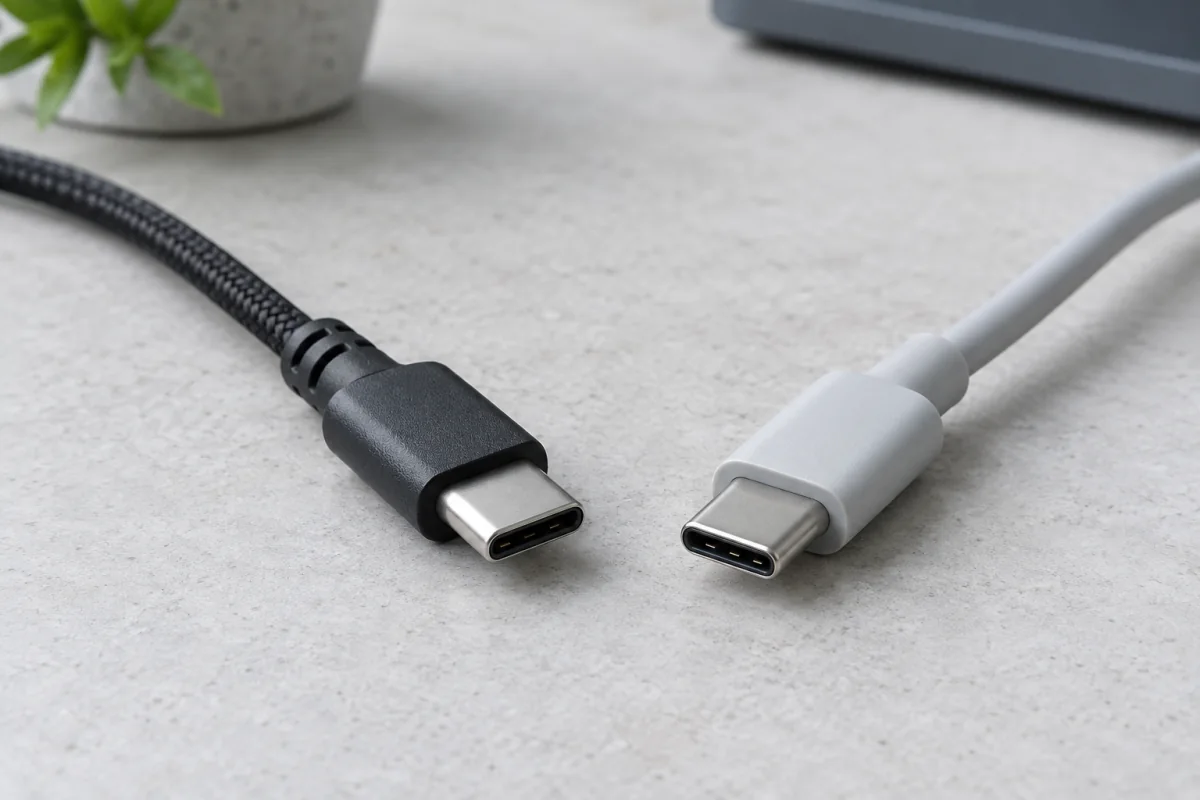
Two USB-C cables can look identical and behave completely differently: one charges a laptop at 100 W and moves a movie in seconds, the other tops up a phone slowly and transfers files at 2010 speeds. The connector is the same. What differs is the wiring inside, a tiny chip in the plug, and which protocols the cable was built to carry. This guide separates the connector from the cable from the protocol, explains USB Power Delivery wattage tiers, puts the data speeds from USB 2.0 to Thunderbolt in one table, shows how to read the new USB-IF logos, and covers how to pick a safe charger.
Key takeaways
- USB-C is only the plug shape. Power, data speed and video are separate features that each cable and port may or may not support.
- Any USB-C to USB-C cable carries up to 60 W (3 A). Cables rated 100 W or 240 W contain an e-marker chip; without it, a charger will never send more than 60 W.
- Most cheap and bundled cables are USB 2.0 for data (480 Mbps) even if they charge fast. A cable for external SSDs or docks needs USB 3.2, USB4 or Thunderbolt marking.
- A charger only supplies what the device asks for, so a 100 W charger is safe for a phone. The risk lies in counterfeit chargers and damaged cables, not in extra watts.
- Look for the USB-IF certified logos with the number printed on them (60 W, 240 W, 20 Gbps, 40 Gbps). They replace guesswork.
The connector vs the cable vs the protocol
Three layers stack up in every USB-C link.
- The connector is the oval, reversible plug standardised in 2014. It has 24 pins, but a cable does not have to wire all of them.
- The cable decides which of those pins are connected, how thick the power wires are, and whether it carries the high-speed data pairs. A charge-only or USB 2.0 cable skips the high-speed pairs entirely. That is why it is thinner and cheaper.
- The protocol is what the two devices agree to run over the wires: USB 2.0, USB 3.2, USB4, Thunderbolt 3, 4 or 5, DisplayPort Alt Mode for video, and USB Power Delivery for charging. The devices at each end must both support a protocol, and the cable must be built for it, or the link falls back to something slower.
This is why “it has USB-C” tells you almost nothing. A port on a budget laptop may be USB 2.0 data with 15 W of charging. A port on a workstation may be Thunderbolt 4 with 100 W charging and two 4K displays. Both look the same.
Power: USB PD, 60 W vs 100 W vs 240 W cables
USB Power Delivery (USB PD) is the negotiation protocol between charger and device. The device tells the charger what voltage and current it can accept, the charger offers what it has, and they settle on the highest safe match. Phones usually take 9 V or 12 V at 2 to 3 A (18 to 45 W). Laptops take 20 V at up to 5 A (100 W). The newest PD 3.1 specification adds 28 V, 36 V and 48 V for up to 240 W, aimed at gaming laptops and monitors.
The cable is the limit that people miss. Every compliant USB-C to USB-C cable must carry 3 A, which at 20 V is 60 W. To carry 5 A (100 W or 240 W), the cable needs thicker power conductors and an e-marker: a small chip in the plug that reports the cable’s ratings to the charger. Without that chip, the charger caps output at 3 A no matter what the box says. USB-IF, the industry body that publishes the specification, describes the PD tiers on its USB Charger (USB PD) page.
| Cable rating | Max current | E-marker chip | Typical use |
|---|---|---|---|
| 60 W | 3 A | Not required | Phones, tablets, small laptops, most bundled cables |
| 100 W | 5 A | Required | Most laptops, power banks, docks (older rating, still common) |
| 240 W (EPR) | 5 A at up to 48 V | Required, with extended power range flag | Gaming laptops, high-power monitors, future-proofing |
USB-A to USB-C cables carry no e-marker and top out at 15 W under the standard, though some phone makers’ proprietary fast charging runs higher. For anything above a phone, use USB-C at both ends.
Data: USB 2.0 to USB4 and Thunderbolt in one table
| Protocol | Max data rate | Cable requirement | What it handles comfortably |
|---|---|---|---|
| USB 2.0 | 480 Mbps | Any USB-C cable | Keyboards, phone sync, slow file copies (about 30 to 40 MB/s) |
| USB 3.2 Gen 1 (formerly USB 3.0) | 5 Gbps | Cable with high-speed pairs, often marked SS or 5Gbps | External hard drives, webcams, 1080p capture |
| USB 3.2 Gen 2 | 10 Gbps | Marked 10Gbps | SATA and entry NVMe SSDs, 4K capture |
| USB 3.2 Gen 2×2 | 20 Gbps | Marked 20Gbps; USB-C only | Fast portable SSDs (about 2,000 MB/s) |
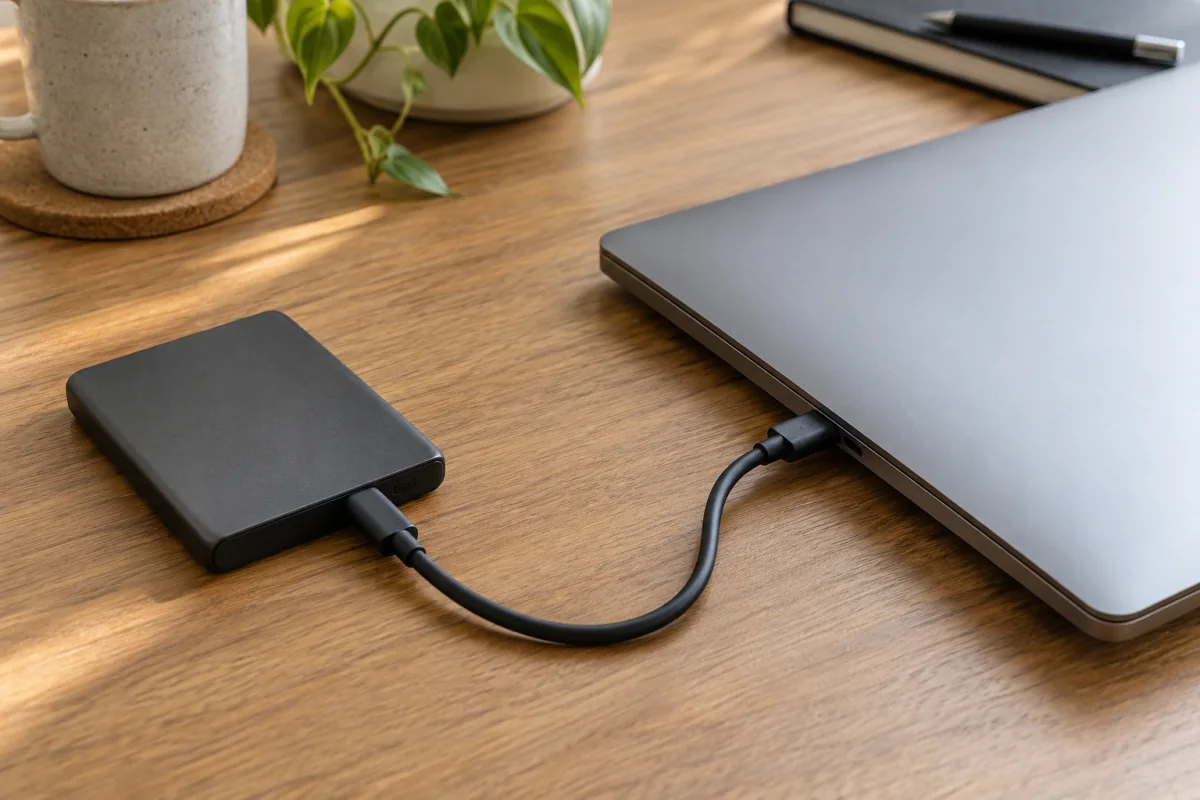
| USB4 / Thunderbolt 3 and 4 | 40 Gbps | Certified 40Gbps cable, e-marked; passive up to about 0.8 m, active for longer | Docks with two 4K displays, eGPUs, NVMe enclosures at 3,000 MB/s |
| USB4 v2 / Thunderbolt 5 | 80 Gbps (120 Gbps one-way) | Certified 80Gbps cable | Multiple high-refresh 4K or 8K displays, top-end docks |
Thunderbolt is Intel’s protocol, now folded into USB4 as a superset. A Thunderbolt 4 cable is always a full-feature USB4 cable; the reverse is not guaranteed, because USB4 allows 20 Gbps implementations. Intel’s Thunderbolt Technology site lists the guaranteed minimums: Thunderbolt 4 promises 40 Gbps, two 4K displays, PCIe at 32 Gbps and 100 W host charging, which makes it the safer badge on a laptop.
The practical trap: the cable that came with your phone is almost certainly USB 2.0. Plug an NVMe SSD into it and you get 40 MB/s. Keep one marked 10 Gbps or 40 Gbps cable for storage, and if you keep sensitive files on encrypted USB drives, check the drive’s own port too, since many are USB 3.2 Gen 1 whatever the cable can do.
Reading the new USB-IF logos
In 2022 USB-IF replaced the old “SuperSpeed” and “USB 3.2 Gen 2×2” jargon on packaging with plain performance logos. A certified cable now shows two numbers: the data rate (5, 10, 20, 40 or 80 Gbps) and the power rating (60 W or 240 W), inside the USB trident logo. A charger shows its wattage the same way. A “Certified USB” logo means the product passed USB-IF’s compliance testing; a cable without it may still work, but you are trusting the seller’s claim. Thunderbolt cables carry a lightning-bolt symbol with the generation number on the plug.
Be wary of “supports 100 W” with no logo. Reputable brands print the rating on the cable jacket or plug. If nothing is printed, assume USB 2.0 data and 60 W power.
Chargers: watts per device, GaN and multi-port sharing
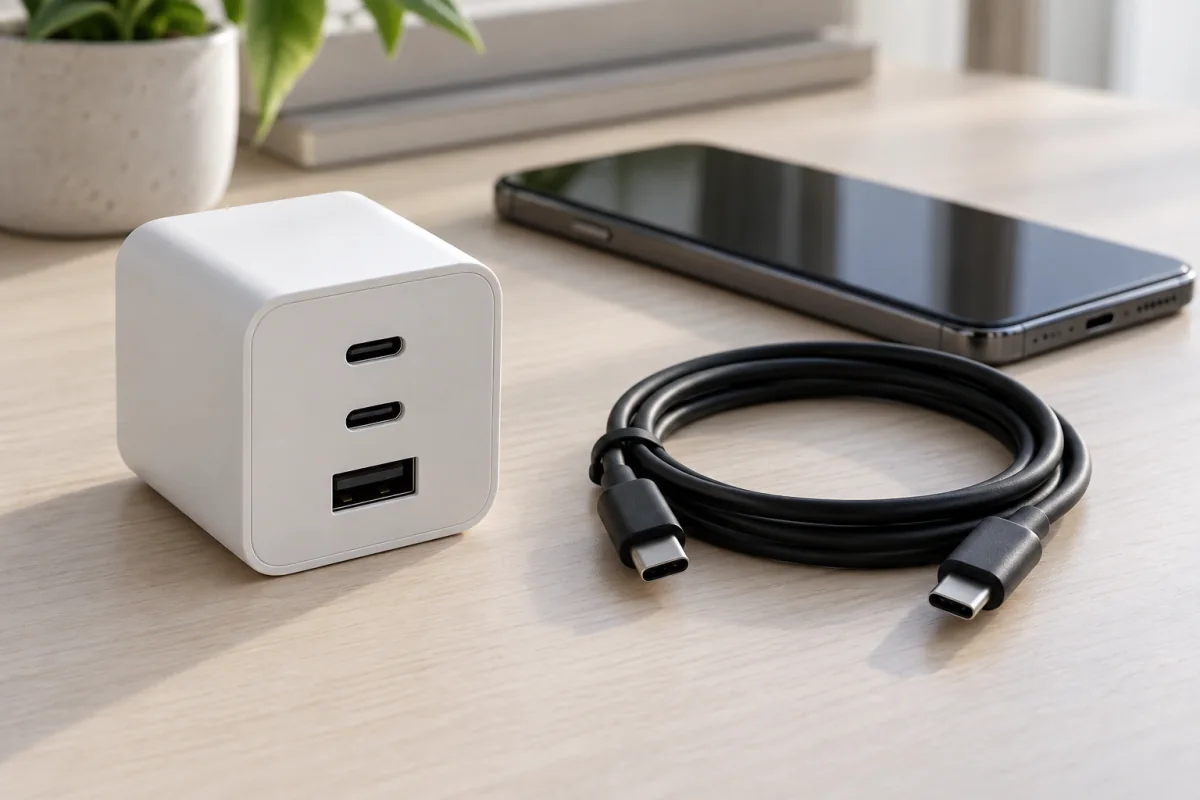
Match the charger to the largest device you will plug in, then check the per-port figures for anything else.
- Phones: 20 to 45 W covers every mainstream phone. Some brands run proprietary 65 to 120 W charging that needs their own charger and cable.
- Full-size laptops: 65 to 100 W. A laptop that shipped with a 100 W brick charges slowly on 65 W.
- Gaming laptops: 140 to 240 W under PD 3.1, if the laptop supports USB-C charging at all.
GaN (gallium nitride) chargers use a transistor material that switches faster and wastes less heat, so a 65 W GaN charger is about half the size of an older silicon one. That is a size benefit, not a speed one; both deliver the same 65 W.
Multi-port chargers share their total wattage. A “100 W” three-port charger might give 100 W to one device, then drop to 65 W plus 30 W plus 5 W with all three in use, and briefly disconnect the laptop when you plug in a phone. Read the per-port table in the spec sheet before buying.
Price ranges at the time of writing: a certified 60 W USB-C cable costs about what a coffee does; 100 W and 240 W e-marked cables a little more; certified 40 Gbps Thunderbolt cables several times that, and 2 m active versions more again. A single-port 30 W GaN charger is inexpensive; a 100 W three-port GaN charger costs roughly what a budget pair of earbuds does; 140 W and 240 W units sit above that. For power when there is no wall socket, the site’s guide to portable power stations covers units that put out 100 W PD from a USB-C port.
Safety: cheap cables, counterfeit chargers, damaged ports
USB PD is safe by design: the device never receives more than it asks for, so a high-watt charger cannot overload a phone. The danger comes from products that ignore the design.
- Non-compliant cables that wire 5 A capacity without the e-marker, or misreport it, can let a charger push 5 A through thin conductors. Symptoms are warm plugs and melted housings.
- Counterfeit chargers sold as branded originals often skip the isolation and over-current protection that the real ones have. If a charger is far cheaper than the maker’s own store price, it probably is not what it says.
- Damaged ports and plugs: lint in the port stops the plug seating fully and causes intermittent charging and heat. Clean with a wooden toothpick, never metal. A port that only works at an angle has bent pins and needs repair.
- Cable strain: cables fail at the plug where they bend. Braided jackets and longer strain-relief collars last longer.
Keeping a laptop at 100 percent on a charger every day is unkind to the battery; the site’s guide to extending laptop battery life explains charge limits and why a slower charger is sometimes the better everyday choice.
Who this is not for
If every device you own is a phone or tablet, a 60 W cable and a 30 W charger cover you and the rest of this guide is background. The people who need to read cable labels own a USB-C laptop, an external SSD, a dock or a monitor that charges the laptop, because those are the links a USB 2.0 or 60 W cable quietly ruins.
Frequently asked questions
Can any USB-C cable charge a laptop?
Any USB-C to USB-C cable delivers up to 60 W, which is enough for many thin laptops, though a demanding machine may charge slowly or only while idle. For 100 W or 240 W, the cable must be e-marked at 5 A. A USB-A to USB-C cable will not charge most laptops at all, because it tops out at 15 W under the standard.
Is a 100 W charger safe for my phone?
Yes, if the charger is USB PD compliant. The phone requests, say, 9 V at 2.5 A, and the charger provides only that. The extra capacity is unused. The exception is a counterfeit or badly designed charger that does not follow PD rules; those are unsafe at any wattage.
Why is my USB-C cable slow for file transfer?
It is almost certainly a USB 2.0 cable, which is what phones bundle and what most charging cables are. USB 2.0 tops out around 40 MB/s. Look for a cable marked 10 Gbps, 20 Gbps or 40 Gbps for external drives, and check that both the computer port and the drive support the same rate; the link runs at the slowest of the three.
What does Thunderbolt add?
A guaranteed feature set: 40 Gbps (Thunderbolt 3 and 4) or 80 Gbps (Thunderbolt 5), PCIe tunnelling for external GPUs and fast NVMe enclosures, support for two 4K displays from one port, daisy-chaining, and, on Thunderbolt 4 hosts, 100 W charging. USB4 can match most of this, but a USB4 port is allowed to skip some features, so the Thunderbolt logo is the surer bet on a laptop or dock.