To extend laptop battery life, lower the screen brightness, switch the power mode to balanced or efficiency, close the app that is quietly using the processor, and, if you keep the laptop plugged in most of the day, turn on the maker’s charge limit so the battery stops at 80 percent. The first three give you more hours today. The last one keeps the battery healthy for years. This guide separates those two problems, lists the ten settings that make a measurable difference on Windows and Mac, shows how to find the app draining the battery, and covers when a replacement is the honest answer.
Key takeaways
- Screen brightness is the single biggest per-charge lever. Dropping from 100 to 50 percent can add an hour or more on a thin laptop.
- One misbehaving app, usually a browser tab or a sync client, often uses more power than everything else combined. Find it in Task Manager or Activity Monitor.
- Heat and time spent at 100 percent charge are what wear a battery out. A charge limit fixes the second; keeping vents clear fixes the first.
- Full discharges and “calibration” do not help a modern lithium-ion battery.
- A battery below 80 percent of its design capacity is worn. Replacing it costs far less than a new laptop.
Battery life versus battery lifespan
People use one phrase for two different problems. Battery life is how many hours you get from a single charge today. Battery lifespan is how many years the battery lasts before it holds only 80 percent of what it did when new. Dimming the screen helps today’s runtime and does nothing for lifespan. A charge limit reduces today’s runtime and does a lot for lifespan. Decide which problem you have before changing anything.
Per-charge gains: the settings that add hours today
1. Brightness
The screen is the largest single power draw on most laptops. Set it to the lowest level that is comfortable, and turn on adaptive brightness (Windows: Settings, System, Display; Mac: System Settings, Displays, Automatically adjust brightness). Keyboard backlight off in daylight helps a little too.
2. Refresh rate
A 120 Hz or 144 Hz screen redraws twice as often as a 60 Hz one. On Windows, Settings, System, Display, Advanced display lets you choose 60 Hz or “Dynamic”, which drops to 60 Hz when nothing is moving. On MacBook Pro models with ProMotion, the default variable rate already does this.
3. Power mode
Windows 11: Settings, System, Power & battery, Power mode. “Best power efficiency” caps the processor’s boost behaviour and can add 20 to 40 minutes on a thin laptop. Turn on Battery saver to switch automatically at a chosen percentage. Microsoft’s battery-saving tips page lists the same settings with screenshots. Mac: System Settings, Battery, and turn on Low Power Mode for “Only on battery”.
4. Background apps
Windows: Settings, Apps, Installed apps, then each app’s Advanced options, Background app permissions. Set chat, game launchers and cloud sync clients to “Never” unless you need them running. Also check Settings, Apps, Startup and disable anything you do not use daily. Mac: System Settings, General, Login Items, and remove what you do not need.
5. Browser tabs
A dozen open tabs with video, ads and live feeds can use more power than the operating system. Close what you are not reading, or use the browser’s built-in sleeping-tabs or energy-saver feature (Edge: Settings, System and performance; Chrome: Settings, Performance).
6. Bluetooth and Wi-Fi
Turning off Bluetooth when no headset or mouse is connected saves a small amount. Wi-Fi matters more when the signal is weak, because the radio transmits at higher power; moving closer to the router or plugging in an Ethernet cable helps more than any toggle.
7. Unplug what you do not need
A USB hub, an external drive and a phone charging from the laptop all draw from the battery. A phone on the USB port can take 10 to 15 watts, more than the laptop itself uses idle.
Lifespan gains: settings that keep the battery healthy for years
8. Charge limits
Lithium-ion cells age fastest when held at 100 percent, especially when warm. If the laptop sits on a desk plugged in most days, cap the charge at around 80 percent. Every major maker has a setting for it:
| Maker | Where to find it | What it does |
|---|---|---|
| Lenovo | Lenovo Vantage, Power, Battery Charge Threshold | Set a custom start and stop percentage, for example stop at 80 |
| Dell | Dell Power Manager or My Dell, Battery settings | “Primarily AC use” holds a lower charge; custom mode sets a range |
| ASUS | MyASUS, Customisation, Battery Health Charging | Balanced (80 percent) or Maximum lifespan (60 percent) |
| HP | HP Support Assistant or BIOS, Adaptive Battery Optimizer | Automatic on recent models; some allow a manual limit |
| Apple | System Settings, Battery, Battery Health, Optimized Battery Charging (and an 80 percent limit on recent MacBooks) | Learns your routine and delays the final 20 percent; the limit holds at 80 |
| Microsoft Surface | Surface app, Smart charging | Automatically limits to 80 percent when mostly plugged in |
Apple documents its version on the Optimized Battery Charging support page. The trade-off is simple: an 80 percent limit costs you 20 percent of today’s runtime. Turn the limit off the night before a long trip and back on when you return.
9. Heat
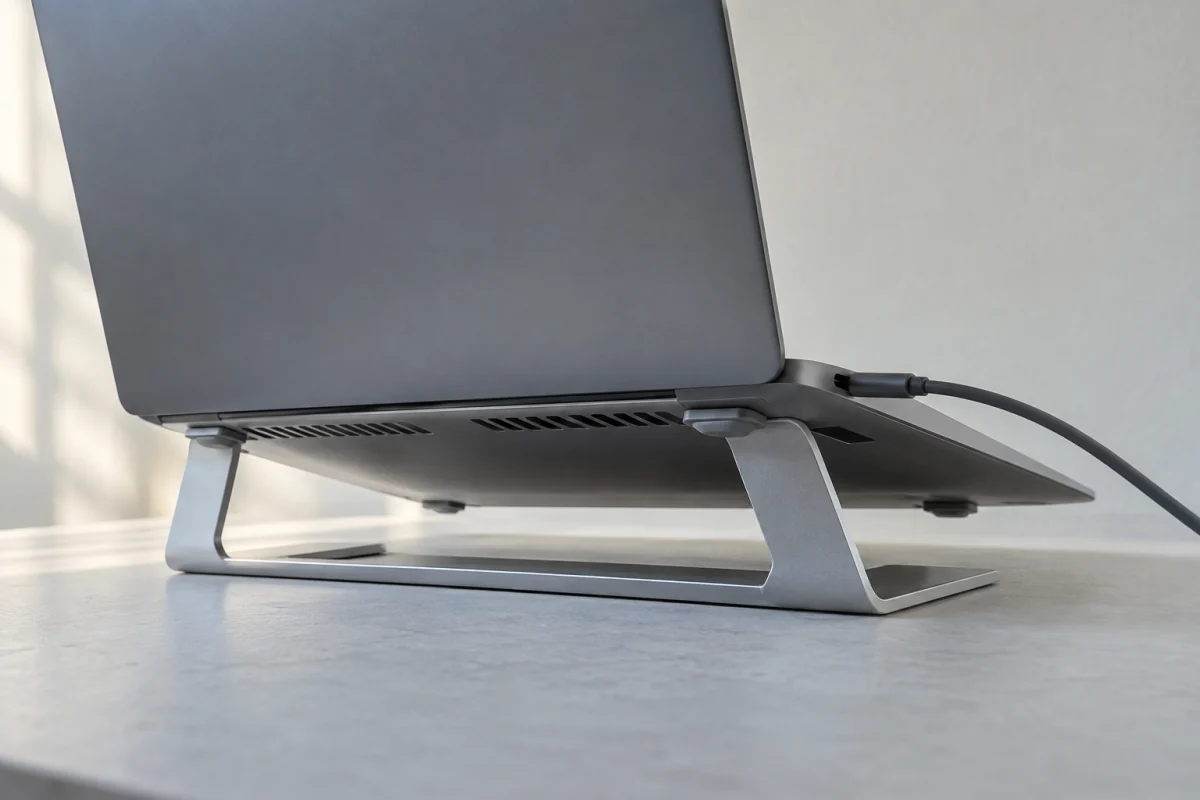
Heat ages the battery whether the laptop is charging or not. Keep the vents clear (a lap or a duvet blocks them), blow dust out of the intake once a year, and avoid leaving the laptop in a hot car. Gaming or exporting video while plugged in is the worst combination because the battery sits at 100 percent and warm for hours; a charge limit helps here too.
10. Storage at half charge
If a laptop will sit unused for a month or more, leave it at roughly 50 percent and switch it off rather than sleeping it. A battery stored full, or one allowed to drain to zero and stay there, loses capacity faster.
Finding the drain
When battery life drops suddenly, one app is usually to blame. Both operating systems tell you which.
- Windows. Press Ctrl+Shift+Esc to open Task Manager, click the Processes tab, and look at the Power usage and Power usage trend columns (right-click a column header to add them if hidden). Anything showing “High” or “Very high” while you are not using it is the suspect. Settings, System, Power & battery, Battery usage shows the same by app over the last 24 hours or 7 days.
- Mac. Open Activity Monitor from Applications, Utilities, and click the Energy tab. Sort by 12 hr Power to see which apps have used the most. The battery icon in the menu bar also lists apps “Using Significant Energy” right now.
Common culprits: a browser tab with autoplay video, a cloud sync client re-indexing after a big upload, a video-call app left running after the meeting, and antivirus doing a full scan. Close or pause them and check again in ten minutes.
Battery report on Windows and cycle count on Mac
Before blaming settings, check whether the battery is simply worn.
Windows. Open Command Prompt or Terminal and run:
powercfg /batteryreport
It saves an HTML file (the path is shown, usually in your user folder). Open it and compare Design Capacity with Full Charge Capacity under Installed batteries. Full Charge divided by Design is your battery health. The report also shows cycle count and a history of capacity over time, which tells you whether the drop was gradual or sudden.
Mac. System Settings, Battery, then click the info button next to Battery Health to see Maximum Capacity and the cycle count. Apple lists the design cycle count for each model (1,000 cycles for all current MacBooks) on its Mac battery cycle count page. Holding Option and clicking the battery icon in the menu bar shows Condition as Normal or Service Recommended.
Myths that waste your time
- Full discharges keep the battery healthy. That was true for nickel-cadmium cells decades ago. Lithium-ion batteries prefer shallow cycles; running to zero regularly shortens their life.
- Calibration restores capacity. A full charge and discharge can correct the percentage the software displays, but it does not change how much charge the cell can hold.
- Keeping it plugged in ruins the battery. Modern laptops stop charging at 100 percent and run from mains. The damage comes from sitting full and warm for months, which a charge limit prevents.
- Dark mode saves a lot of battery. Only on OLED screens, where black pixels are off. On the IPS panels in most laptops, the backlight is on regardless of what colour the pixels show.
- Closing all apps in the taskbar saves power. Apps that are open but idle use almost nothing. It is the busy ones that matter, and the energy columns show which they are.
When to replace the battery
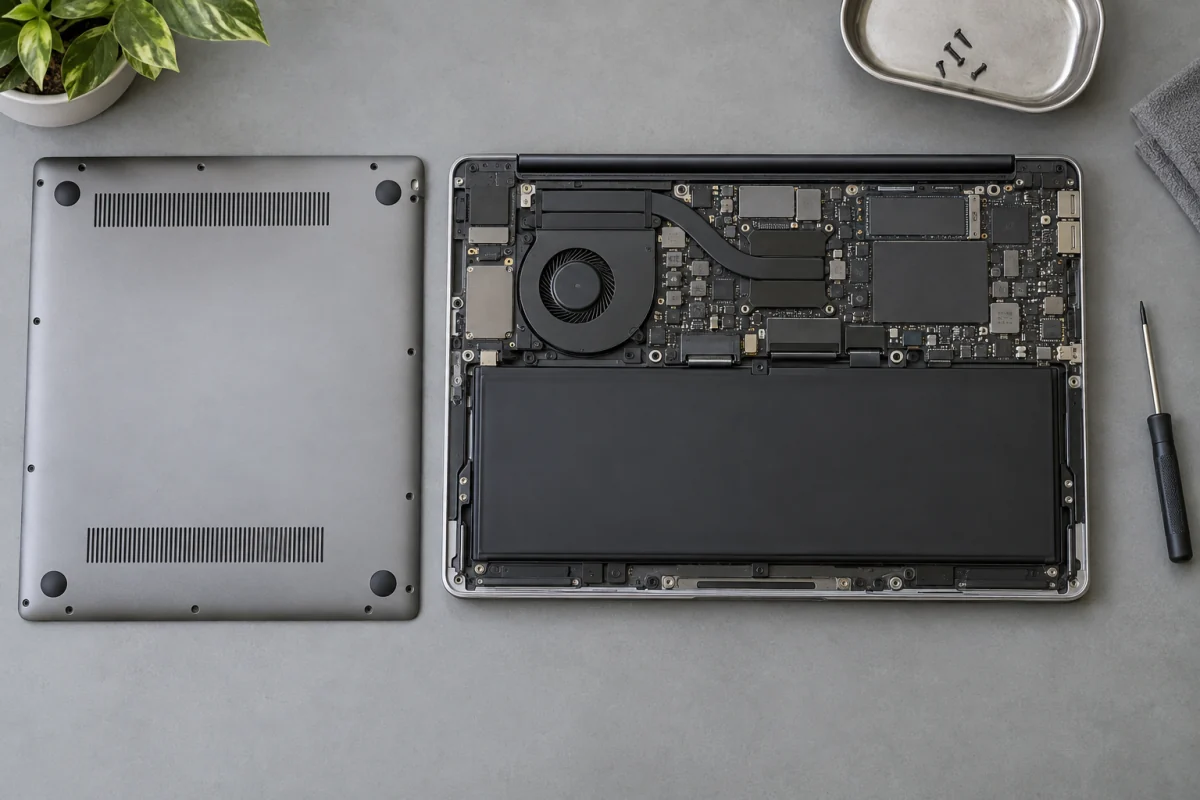
A battery at or below 80 percent of its design capacity is worn. If the laptop otherwise suits you, replacement is the better value. At the time of writing, a genuine battery fitted by the manufacturer or an authorised repairer generally falls between 100 and 250 US dollars depending on the model, with Apple and premium thin laptops at the top. Third-party batteries from an independent shop are often 50 to 120 dollars; ask for a stated capacity and a warranty. On many older Windows laptops the battery is a few screws away and a fifteen-minute job with the maker’s service manual.
If the laptop is also slow, out of storage and no longer receiving updates, put the money toward a new one instead. Our laptop buying guide explains which specs matter, and for a work machine that spends its life docked, our guide to laptops for small business weighs battery against ports and warranty.
One more check before buying anything: the charger. A weak or wrong charger makes a laptop drain while plugged in, and a cheap cable can limit charging to a fraction of the rated power. Our guide to USB-C chargers explained covers wattage and cable ratings.
Who this guide is not for
If your laptop is a gaming machine with a dedicated graphics card, expect three to five hours on battery however carefully you set it up; the hardware decides. If the laptop is more than seven or eight years old, a new battery may cost more than the machine is worth. And if the battery is swollen (the trackpad or case is bulging), stop using it and have it replaced; no setting fixes that.
Frequently asked questions
Is it bad to keep a laptop plugged in all the time?
Not in the way people fear. The laptop stops charging at full and runs from the mains. What wears the battery is sitting at 100 percent while warm for months. Turn on the maker’s charge limit and keep the vents clear, and a desk-bound laptop keeps its battery healthy for years.
Should I charge to 80% only?
If the laptop is plugged in most of the day, yes. It slows capacity loss noticeably over a few years. If you rely on the battery every day and need every hour, charge to 100 and accept slightly faster wear; a battery is a consumable either way.
Why does battery drop while asleep?
Modern sleep keeps the network connection alive and lets some apps run, so a laptop can lose a few percent overnight. On Windows, use Hibernate instead (the laptop writes memory to disk and uses no power). On a Mac, turn off “Wake for network access” in Battery, Options. Losing more than 5 percent overnight usually means an app is waking the laptop.
Does dark mode save battery on a laptop?
Only on an OLED screen, where dark pixels are switched off. On the IPS panels that most laptops use, the backlight runs at the same brightness regardless of colour, so dark mode makes no measurable difference. Lowering brightness is what saves power on those screens.