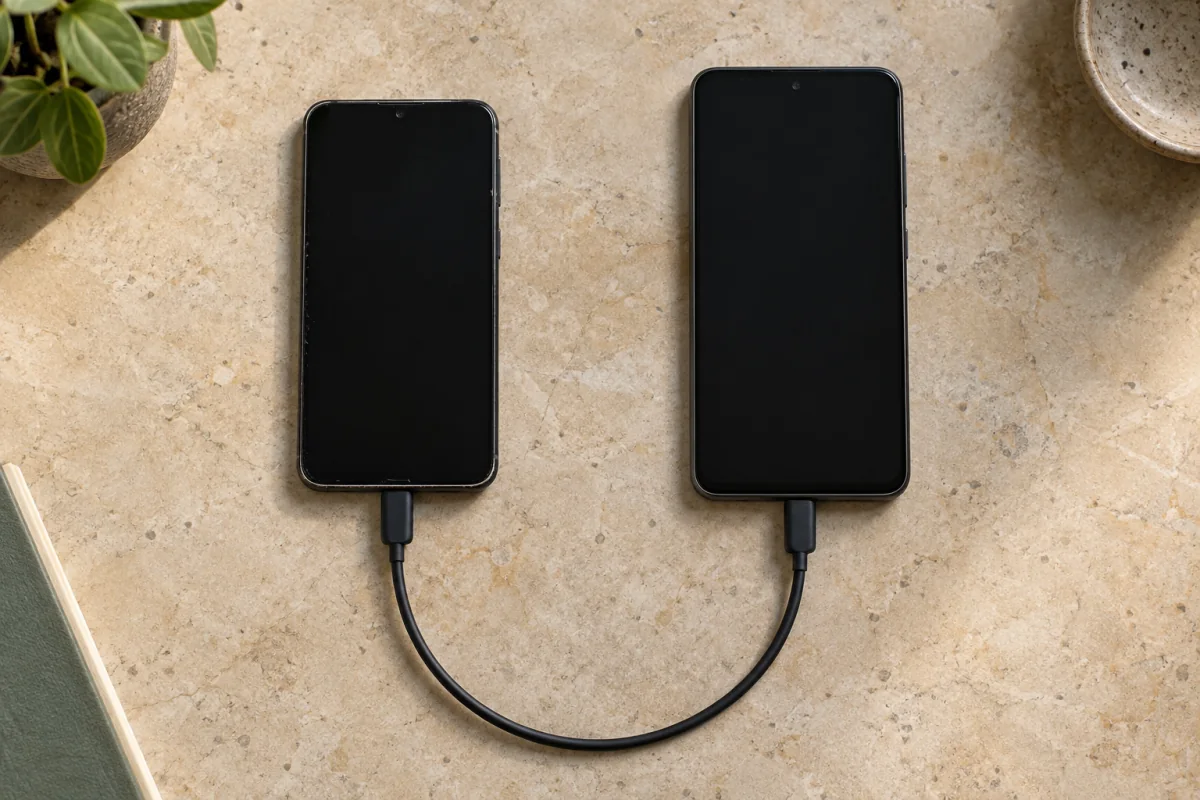
Moving to a new phone takes about an hour if you use the built-in transfer tool for your platform, and most of that hour is waiting. Android to Android uses the setup wizard or Samsung Smart Switch; iPhone to iPhone uses Quick Start; switching between the two uses Apple’s Move to iOS app or Google’s Switch to Android app. The part people get wrong is not the transfer itself. It is the handful of things that never move automatically: authenticator codes, eSIMs, banking apps, a paired watch and, on some routes, WhatsApp.
Key takeaways
- Charge both phones above 50 percent and put them on the same Wi-Fi. A transfer that fails halfway usually failed on battery or Wi-Fi.
- Same platform transfers (Android to Android, iPhone to iPhone) move apps, settings, photos and messages. Cross-platform transfers move less, and some app data is lost.
- Move your authenticator app before anything else. Losing two-factor codes locks you out of accounts, and support desks can take days to help.
- WhatsApp, eSIMs and banking apps each have their own step. Do them while you still have the old phone working.
- Wipe the old phone only after you have signed in to every important app on the new one.
Before you start
Three things prevent most failures. Charge both phones and leave them plugged in; a large photo library can take an hour or more. Put both on the same Wi-Fi and keep them side by side, because Apple and Google transfer over a direct wireless link and drop it if the phones are separated. And run a full backup of the old phone anyway: Google One backup under Settings, Google, Backup on Android, or iCloud Backup under Settings, your name, iCloud on iPhone. If the direct transfer fails, you restore from that instead.
Then write down what will not move by itself: authenticator apps, WhatsApp on cross-platform moves, eSIM profiles, banking apps tied to a device, watch and earbud pairing, and anything stored only on the phone such as voice recordings or offline maps. Each is covered in the manual section below.
Android to Android
Every recent Android phone offers a transfer during setup. Turn on the new phone, choose Copy apps and data, and pick the old phone as the source. You can connect the two with a USB-C cable, which is fastest, or wirelessly. Google’s setup copies apps, app data for apps that allow it, contacts, calendar, SMS and MMS, call history, photos and videos, device settings and Wi-Fi passwords. Google’s step-by-step page is at Android Help: transfer data to a new Android phone.
Samsung owners should use Smart Switch instead, which is offered during setup on a Galaxy and also available as an app. It moves everything the Google method does plus home screen layout, Samsung app data, alarms and some app settings. Smart Switch works from any Android phone or an iPhone to a Galaxy; from a Galaxy to a non-Samsung phone you use the Google method.
If you already set up the new phone and skipped the copy step, restore from your Google backup under Settings, Google, Set up and restore, or reset the phone and start again. The reset route is cleaner.
iPhone to iPhone
Quick Start is the direct method. Turn on the new iPhone, hold it next to the old one, and a card appears on the old phone asking whether to set up the new device. Scan the animation with the old phone’s camera, enter your old passcode on the new phone, and choose Transfer from iPhone. This copies everything including apps, settings, messages, Health data, keychain passwords and photos, and it typically takes 30 to 90 minutes over Wi-Fi. A USB-C or Lightning cable between the two makes it quicker. Apple’s instructions are on the Apple Support page for Quick Start.
The alternative is restoring from an iCloud backup during setup, the option to pick when the old phone is lost, broken or already wiped. Make sure the backup is recent: Settings, your name, iCloud, iCloud Backup, Back Up Now. Both routes carry Apple Watch pairing across with a prompt. Apple Pay cards need to be re-added on the new iPhone.
Android to iPhone and iPhone to Android
Crossing platforms works, but less comes across. Apple’s Move to iOS app runs on the old Android phone and pairs with a new iPhone during setup. It moves contacts, message history, photos and videos, bookmarks, mail accounts, calendars, WhatsApp chats and any free apps that exist on both stores. Paid apps, most app data, music files and ringtones do not transfer.
Going the other way, Google’s Switch to Android app on the old iPhone, or a Lightning to USB-C cable into the new Android during setup, moves contacts, calendar, photos, videos, SMS and iMessage history (as SMS), WhatsApp on supported phones, and free apps. Before you switch, turn off iMessage under Settings, Messages, or texts from other iPhone users can keep routing to Apple’s servers and never reach your new phone. Apple has a deregister page for this if the old phone is already gone.
Lost on both cross-platform routes: game progress not tied to an online account, notes in a platform-only app, voice memos, purchased apps and Health or Fitness data. Export what you can from each app first.
The items that need manual work
On same-platform moves WhatsApp restores from its own backup: Google Drive on Android, iCloud on iPhone. Run a manual backup under Settings, Chats, Chat backup on the old phone and wait for it to finish. On cross-platform moves, Move to iOS and Switch to Android carry chats directly, but only during initial setup. If the new phone is already set up, WhatsApp’s own Transfer chats option (Settings, Chats) uses a QR code between any two phones on the same Wi-Fi.
Two-factor authenticator apps
Do this first, with the old phone still working. Google Authenticator syncs codes to your Google account when cloud sync is on in the app. Microsoft Authenticator backs up to a Microsoft account, Authy syncs by phone number, and password managers such as 1Password and Bitwarden store codes inside the vault. For any account with no sync, log in on a computer, remove the old authenticator and scan a new QR code with the new phone. Keep the recovery codes in your password manager. Our guide to setting up two-factor authentication covers the account-by-account steps.
Passwords
Google Password Manager and iCloud Keychain come across on same-platform moves. Crossing platforms, export from one and import into the other, or move to a dedicated app that works on both; our comparison of password managers explains the trade-offs.
eSIM
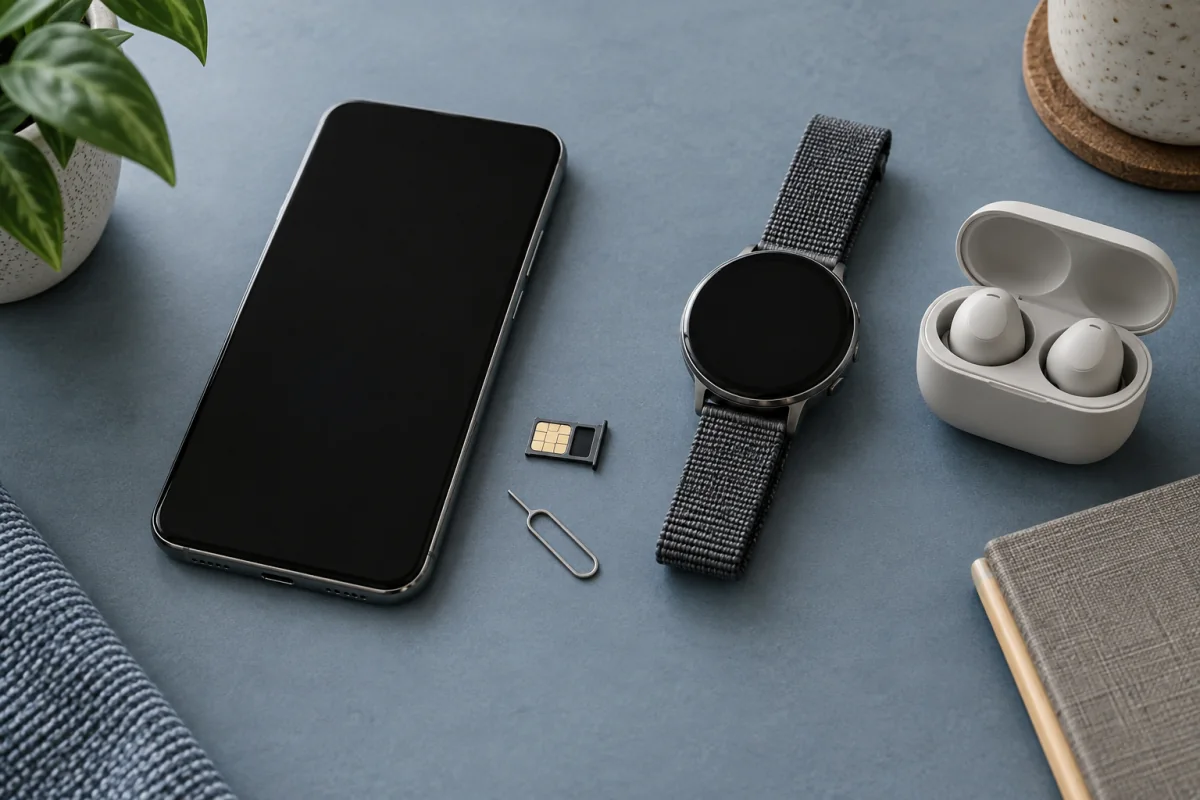
A physical SIM can simply be moved. An eSIM is tied to the phone it was activated on. Quick Start offers to transfer it on supported carriers, and recent Android phones offer the same in the setup wizard. If the option does not appear, ask your carrier for a new QR code or activation through their app. Do this before you wipe the old phone, or you can be without service until the carrier reissues it.
Banking, payment and identity apps
Many bank apps bind to a specific device and require a fresh registration on the new phone, often with a code sent to the old one or an ID check. Google Wallet and Apple Pay cards must be re-added. Government identity apps and some workplace apps behave the same way. Open each on the new phone while the old one is still active so any confirmation prompt can be approved.
Smartwatch, earbuds and other accessories
A Wear OS or Galaxy Watch has to be unpaired and paired again; the watch app offers a transfer that keeps your settings. Apple Watch moves with Quick Start. Earbuds, fitness bands and smart home devices pair fresh in a minute each.
Local-only files
Check Downloads, the voice recorder, screen recordings, scanned documents, offline maps and any note app set to store on device. Upload them to a cloud account or copy them to a computer over USB. One of the cloud backup services we compare will cover a phone and a laptop together.
Wiping the old phone safely
Give yourself a week of overlap if you can. Keep the old phone on Wi-Fi with the SIM removed, and use it only to approve login prompts for apps you forgot. Then:
- Turn off Find My (iPhone: Settings, your name, Find My) or remove the Google account (Android: Settings, Passwords and accounts). This clears activation lock and Factory Reset Protection so the next owner can set the phone up.
- Deregister iMessage if you are leaving iPhone. Remove the eSIM profile only after the new phone has service.
- Unpair the watch, remove the phone from trusted-device lists (Google, Apple, Microsoft, WhatsApp linked devices) and take out any SD card.
- Erase: iPhone under Settings, General, Transfer or Reset iPhone, Erase All Content and Settings; Android under Settings, System, Reset options (Samsung: General management, Reset). Both use full encryption, so a reset makes the old data unreadable.
Wipe a phone this way before selling or trading it in, even if the buyer says they will.
Who this guide is not for
- Work phones managed by an employer. The IT department usually enrols the new device and the personal transfer tools are blocked. Ask them first.
- A phone that no longer turns on. Skip the direct transfer and restore from the last cloud backup; anything created after that backup is gone unless a repair shop can power the phone.
Frequently asked questions
Does transferring move my WhatsApp chats?
On the same platform, yes, through WhatsApp’s own Google Drive or iCloud backup, as long as the backup finished before you moved. Crossing platforms, Move to iOS and Switch to Android carry chats during initial setup only. If the new phone is already set up, use WhatsApp’s Transfer chats option with the QR code, or reset the new phone and start over.
Will my apps and passwords come across?
Same-platform moves reinstall your apps and, on iPhone, most app data. Android app data comes across only for apps whose developers allow it, so expect to sign in again to a fair number. Passwords in Google Password Manager or iCloud Keychain move with your account. Two-factor codes move only if the authenticator app has sync turned on.
How long does the transfer take?
A phone with 20 to 30 GB of photos and apps takes 20 to 45 minutes over a cable and up to twice that over Wi-Fi. Libraries of 100 GB or more can take several hours with the phones side by side and plugged in. Cloud restores finish the essentials in under an hour, then keep downloading apps and photos in the background for a day.
Can I transfer after I have already set up the new phone?
Partly. Android can restore from a Google backup at any time under Settings, Google, Set up and restore, and Samsung Smart Switch runs whenever you like. iPhone’s Quick Start only runs during setup, so the clean route is to erase the new phone and start again, which takes ten minutes plus the transfer time. Cross-platform apps work best during setup too.