My cat Pixel just knocked my phone off my desk for the third time today, and watching it tumble reminded me of those old flip phones that could survive anything. Fast forward to 2026, and Samsung just handed me their new Galaxy Z TriFold — a phone that unfolds into three sections and costs more than my first car.
First Impressions: Unfolding This Thing Takes Practice
You’ll need about a week to stop fumbling with the Z TriFold’s opening mechanism. I’m not kidding — I spent my first day accidentally triggering the wrong fold and ending up with this awkward L-shaped device that looked like I’d broken it.
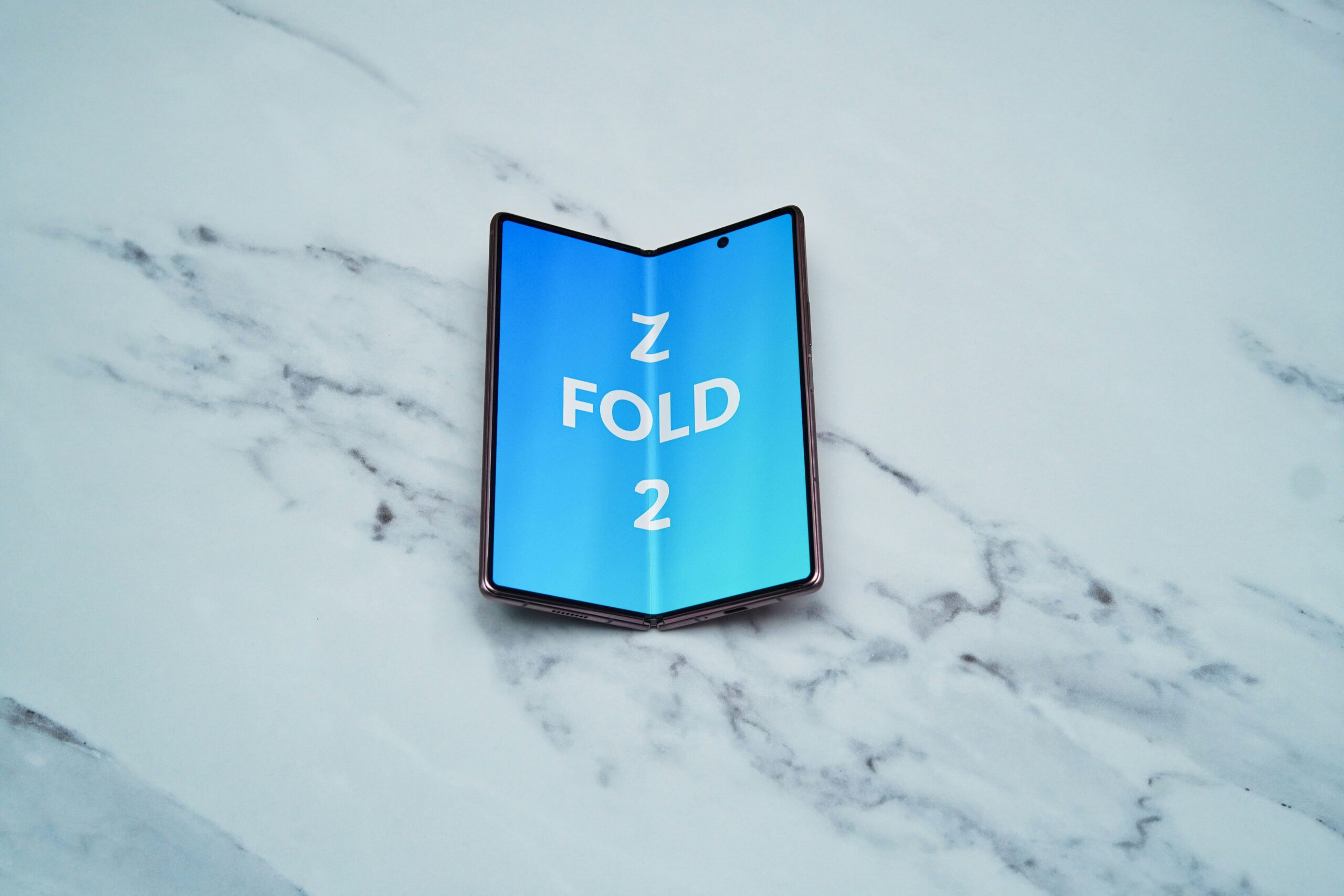
The phone has two hinges and three distinct modes: phone mode (6.2 inches), tablet mode (one fold open at 8.1 inches), and full desktop mode (both folds open at 10.5 inches). Samsung’s magnetic alignment system helps the panels snap into place, but you’ll still feel like you’re performing origami for the first few days.
Getting the Hang of Daily Transitions
Practice the phone-to-tablet transition during your morning coffee routine. That’s when your brain isn’t rushing, and you can focus on the muscle memory. The tablet-to-desktop unfold is easier because you’re usually sitting down anyway.
The weight distribution surprised me. At 285 grams, it’s heavy but not unwieldy in phone mode. Once you unfold it completely, though, you’re holding something that feels more like a small laptop than a phone. My daily carry routine definitely changed — this thing needs its own pocket.
The Screen Real Estate Game: When Size Actually Matters
Three screens mean three different use cases, and figuring out which mode works for what took me about two weeks of real-world testing. Phone mode handles your typical stuff. Calls, texts, quick app checks. Nothing revolutionary here.
Tablet mode is where things get interesting for content consumption. Watching YouTube videos on the 8.1-inch display feels perfect for commuting. I found myself reaching for this mode way more than I expected, especially for reading articles and browsing social media during lunch breaks (which probably says something about my attention span).
Desktop Mode: Your Laptop’s New Rival?
Here’s what most people miss: desktop mode turns this into a legitimate productivity machine. The 10.5-inch display runs Samsung’s enhanced DeX interface, and you can actually get work done here. I wrote half of this review on the Z TriFold itself, using Samsung’s improved on-screen keyboard that splits across the bottom third of the screen.
But here’s the reality check — you need a flat surface. Trying to use desktop mode while standing or on uneven surfaces is frustrating. The screen also picks up fingerprints like crazy, so keep a microfiber cloth handy.
Your productivity apps will determine if this mode is worth it:
– Google Docs and Office 365 work great
– Video editing with LumaFusion feels natural
– Email management becomes surprisingly efficient
– Coding apps work but still feel cramped
App Optimization: The Make-or-Break Factor
Samsung partnered with major app developers to optimize for the TriFold’s unique aspect ratios. Results are inconsistent. About 60% of popular apps handle the transitions smoothly. The other 40% either stretch awkwardly or just give you black bars.
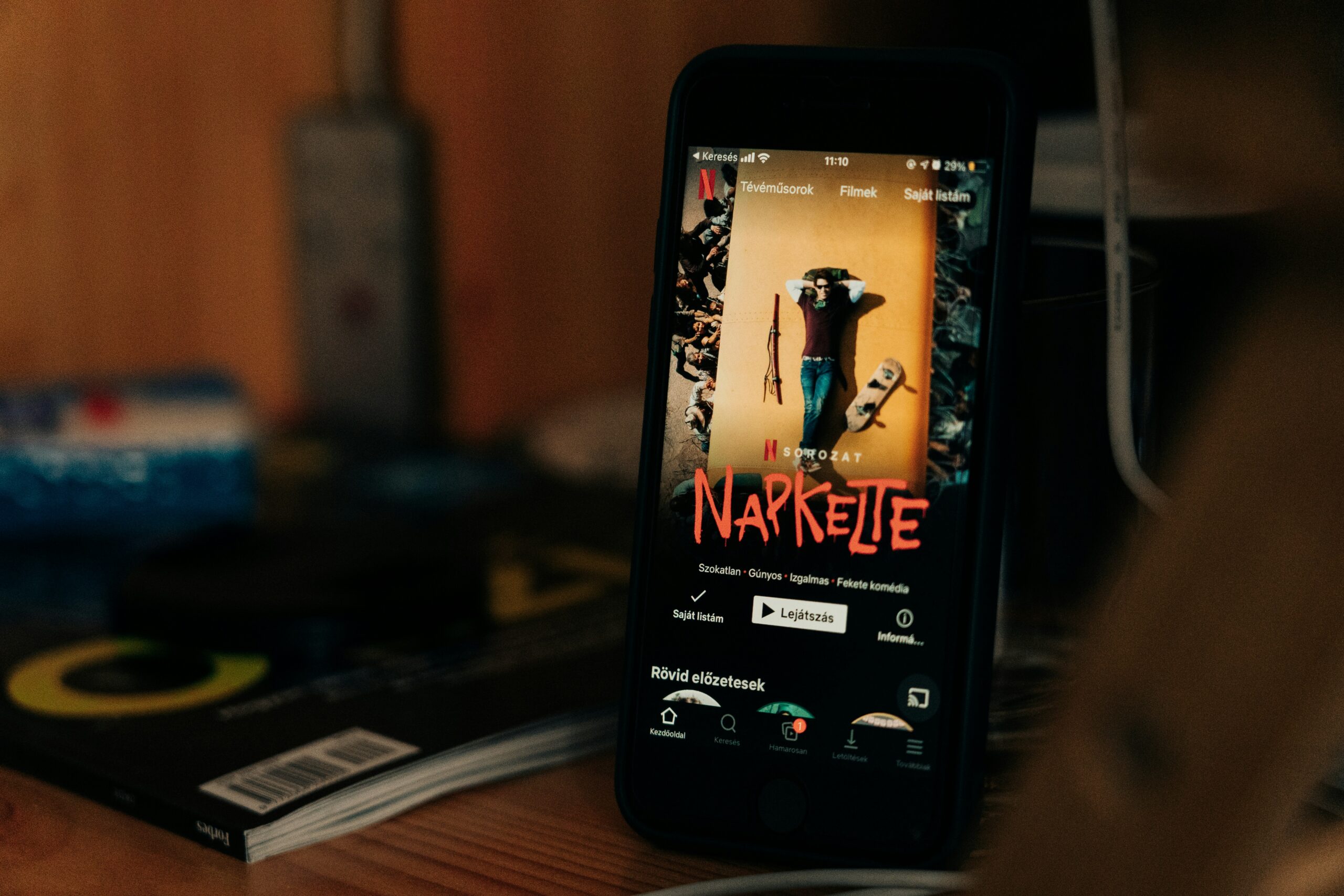
Instagram looks fantastic in tablet mode but gets weird in desktop mode. Netflix adapts well across all three configurations. Banking apps? Hit-or-miss — some scale perfectly, others look like blown-up phone apps.
The real frustration comes with app continuity. Opening an app in phone mode, then unfolding to tablet mode should seamlessly expand the interface. Works about 70% of the time. When it doesn’t, you get jarring reloads or layout glitches that break your workflow.
My recommendation: spend 30 minutes on day one testing your most-used apps across all three modes. Make a mental note of which apps work well in which configurations. You’ll save yourself lots of daily frustration.
Gaming performance varies wildly depending on how developers implemented multi-screen support. Call of Duty Mobile looks incredible in desktop mode with touch controls spread across the larger canvas. Puzzle games work better in tablet mode. Simple games like Wordle? Fine in any configuration.
Battery Life Reality: Planning Your Charging Strategy
The thing is, three screens drain battery faster than you’d expect, even with Samsung’s adaptive refresh rate technology. In mixed usage (switching between all three modes throughout the day), you’re looking at about 8-10 hours of battery life.
Stick primarily to phone mode? You can push 12-13 hours. Desktop mode is the battery killer — expect 4-5 hours of continuous use before you need to find a charger.
Samsung includes a 45W charger that gets you from 0-80% in about 50 minutes. The wireless charging works but it’s slow, taking nearly two hours for a full charge. Here’s my daily charging strategy that actually works:
- Charge overnight (obviously)
- Top off during lunch if you’re heavy desktop mode user
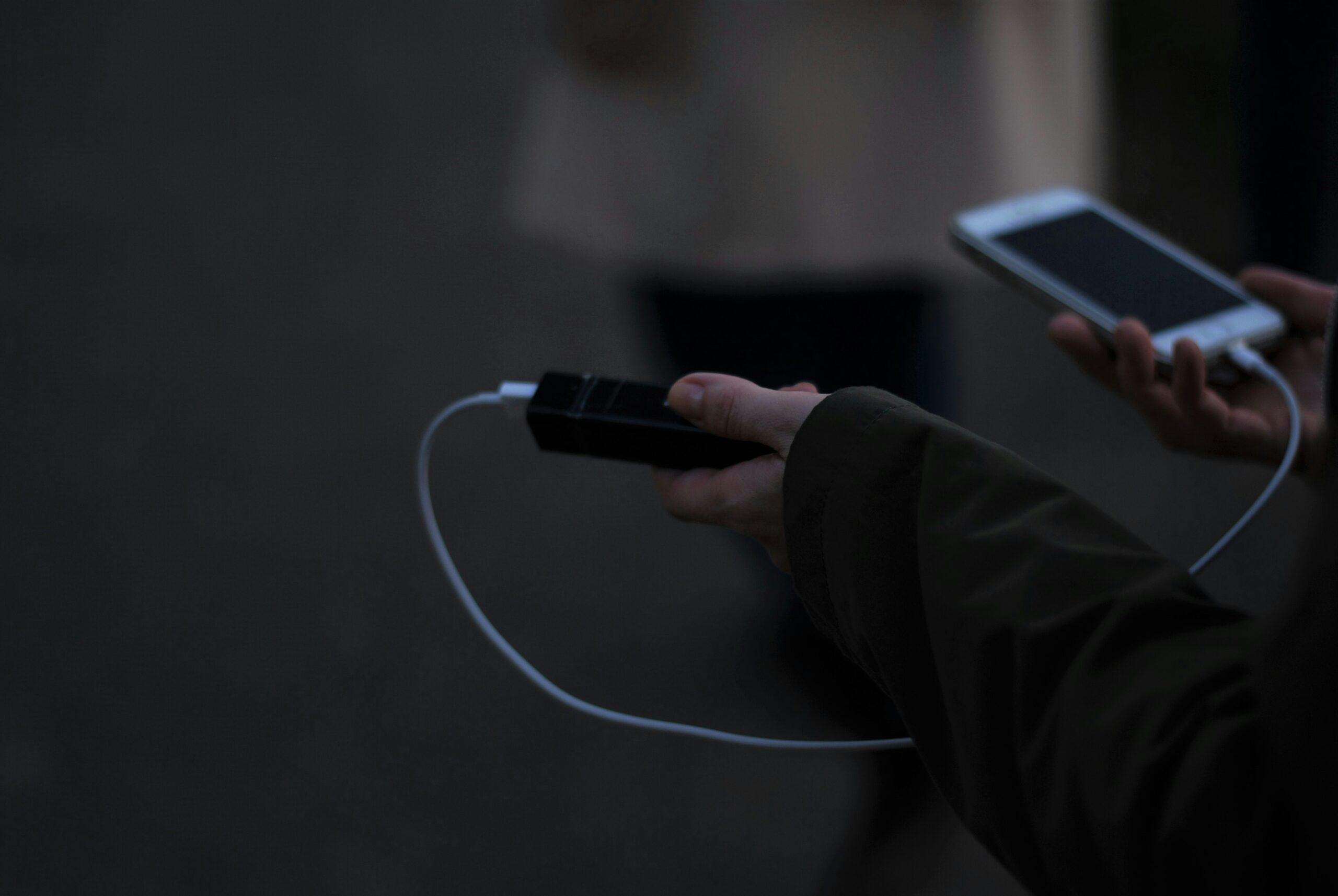
- Keep a portable battery pack
- Use power saving mode when you’re primarily in phone configuration
The battery percentage indicator shows different numbers depending on which mode you’re in, which is confusing at first. Phone mode might show 45% while desktop mode shows 38% for the same battery level, reflecting the different power demands.

Durability Concerns: Protecting Your Investment
Two hinges mean twice the potential failure points. Samsung rates each hinge for 200,000 folds. Sounds impressive until you realize that’s about 18 months if you fold/unfold 300 times daily.
The outer screen has Gorilla Glass Victus 3, but the inner flexible displays use Samsung’s Ultra Thin Glass with a protective polymer layer. They feel surprisingly solid. You’ll notice micro-scratches after about a month of normal use though.
Case Options and Protection Strategy
Samsung’s official case covers all three panels when folded but adds significant bulk. Third-party options are limited, and most compromise either protection or functionality.
Your best protection strategy combines careful handling with screen protectors on the outer display. The inner screens can’t use traditional protectors, so baby them accordingly. I learned this the hard way when Pixel’s claws left tiny marks on the middle panel.
Water resistance is IPX8 rated, meaning it can handle splashes and brief submersion. Those hinge mechanisms aren’t sealed perfectly though — avoid beach days or dusty environments when possible.
Price vs. Practicality: The $2,800 Question
At $2,799, the Z TriFold costs more than many laptops while trying to replace both your phone and tablet. Whether that math works depends entirely on your specific use case and budget tolerance.
If you’re someone who carries both a phone and tablet daily, the consolidation argument makes sense. Content creators who need portable editing capabilities will find value in desktop mode. Business travelers might appreciate having one device that handles calls, presentations, and productivity work.
Most people though? It’s an expensive novelty. The folding mechanism is genuinely impressive engineering, but it doesn’t solve problems that existing devices can’t handle more affordably.
Consider this: a flagship phone ($1,000) plus a good tablet ($400) gives you $1,400 in devices that work independently. Better app optimization. Won’t leave you phoneless if one component fails.
Bottom Line
The Galaxy Z TriFold showcases incredible engineering but struggles to justify its premium price for everyday users. App optimization needs work, battery life requires planning, and durability remains questionable for a $2,800 device. If you’re an early adopter with specific productivity needs and money to burn, it’s a fascinating glimpse into mobile computing’s future — just don’t expect it to perfectly replace your existing devices yet.